This addition brings streamlined content distribution, scheduling control, and enhanced engagement, allowing users to build stronger, more consistent community interactions through SalesMFast Social Planner.
📌 Key Features:
-
🕒 Scheduled Posting: Plan and schedule your content in advance, ensuring posts go live at the optimal time for each community. This helps maintain engagement and ensures your message reaches members at the best times.
-
📋 Unified Content Management: Track and manage all posts, past and future, from a single interface. View post history, upcoming scheduled posts, and current statuses across all communities for quick adjustments and oversight.
🔍 How Does it Work?
1️⃣ Navigate to Marketing > Social Planner
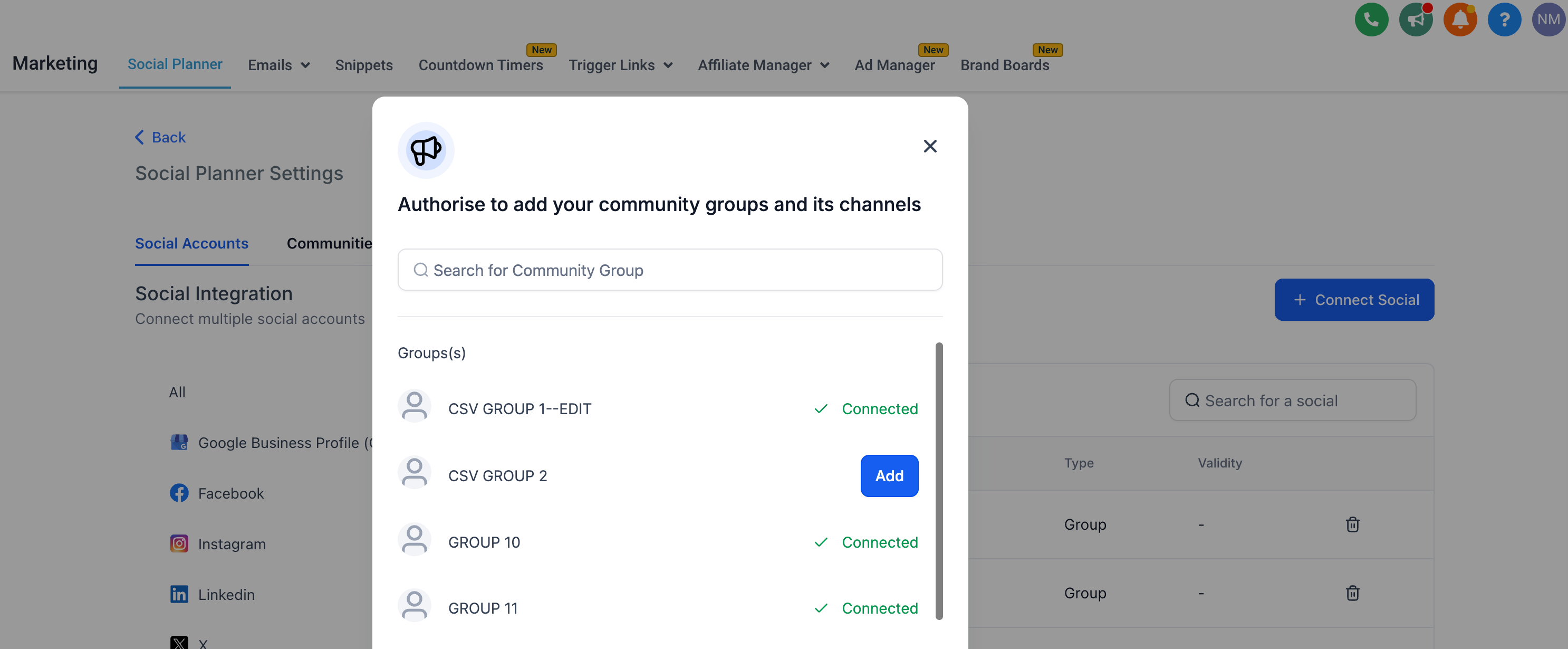
2️⃣ Connect your Community Groups and Channels — users can add them from the 'Settings' page on Social Planner and select a Community group from the list of Groups available based on your current location.
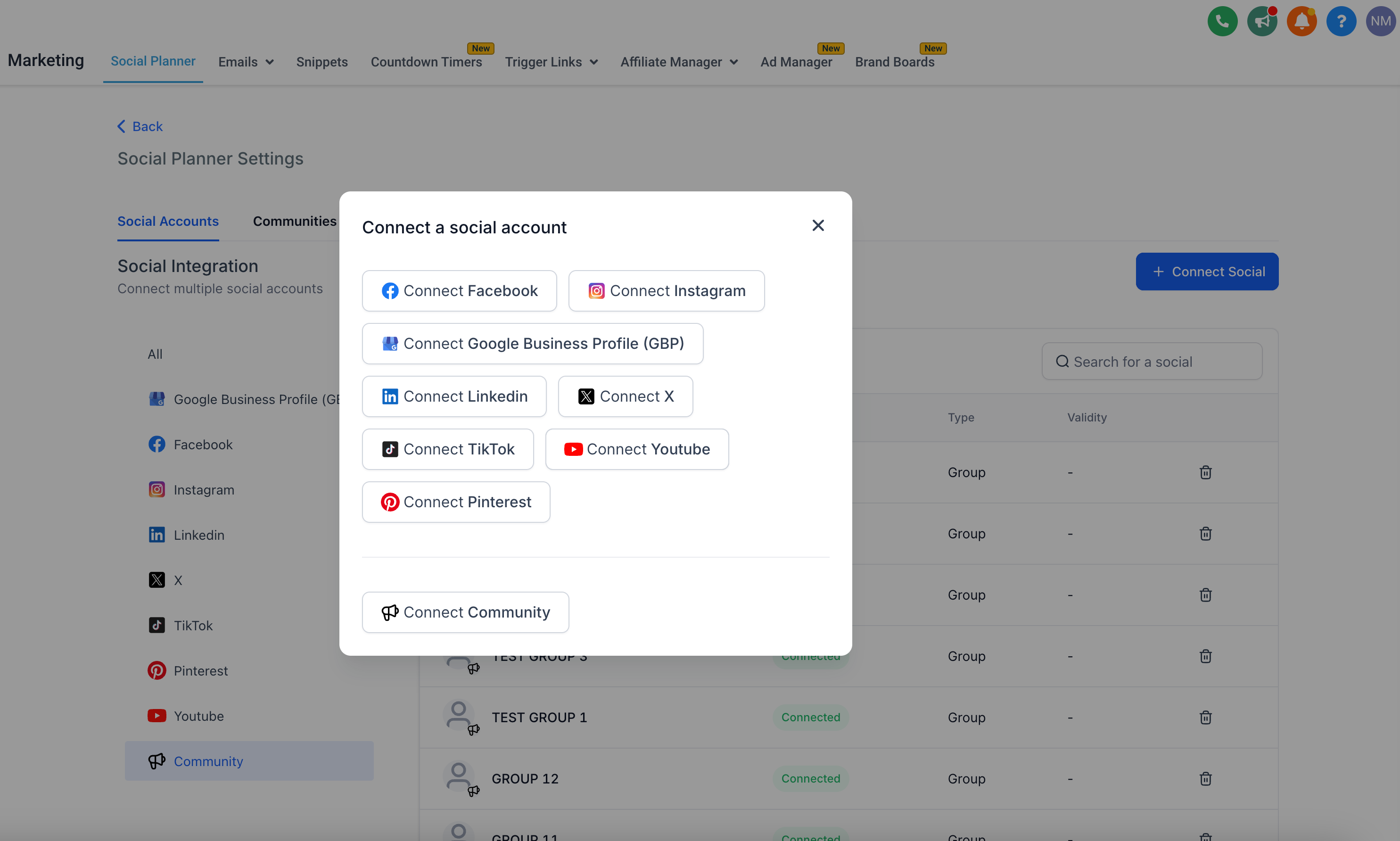 📌 Note: Community will only be connected from the respective sub-account inside the SalesMFast Social Planner.
3️⃣ The Group and all its channels will be added to the Social Planner.
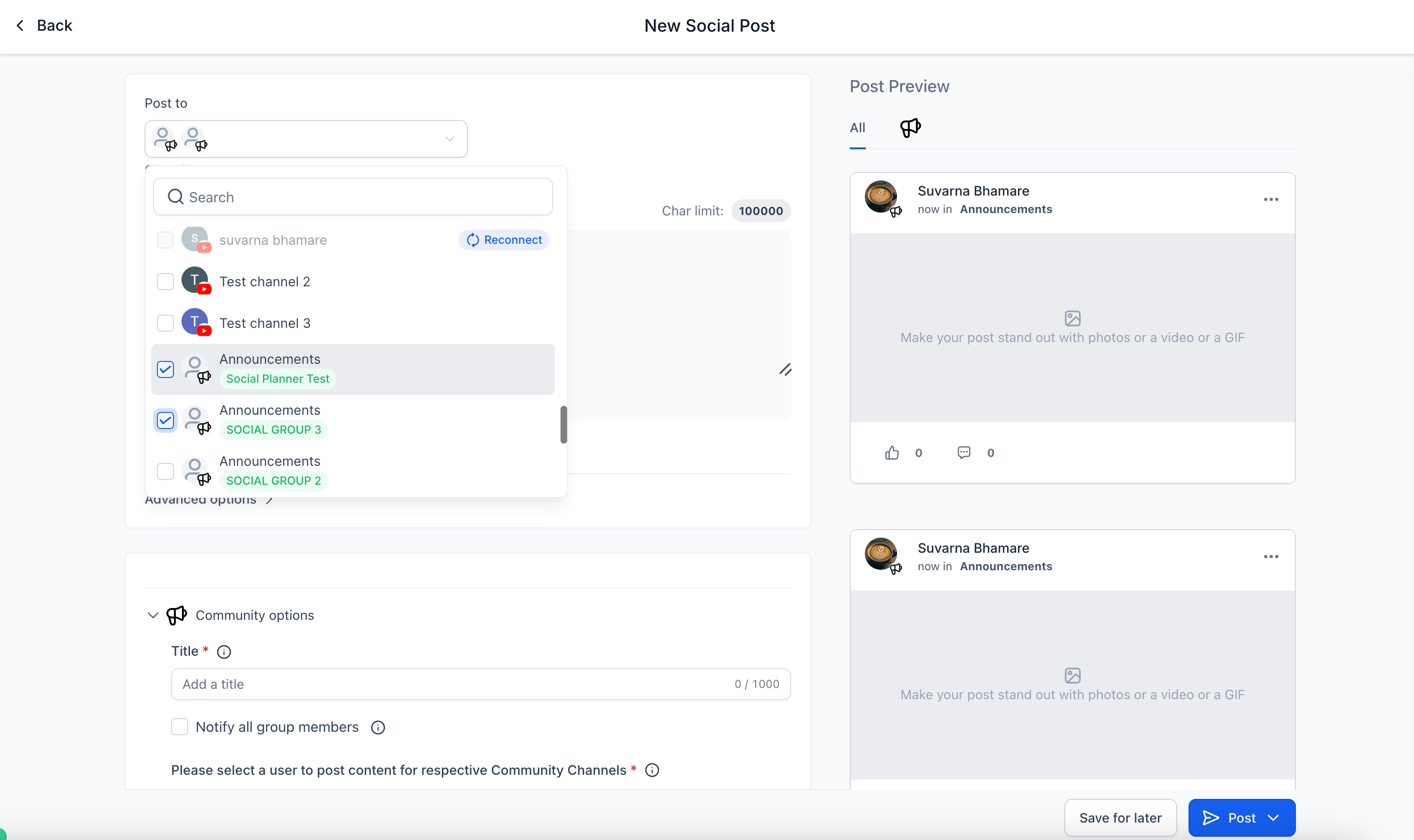
4️⃣ Go to the Post Composer page, multi-select the channels, and the interface will show which channel belongs to which group.
5️⃣ Add your content with rich text and media
* Both formats — 🖼️ Image and 🎥 Video — are allowed
* Images: Max size = 10 MB
* Videos: Max size = 1 GB, Min duration = 4 seconds
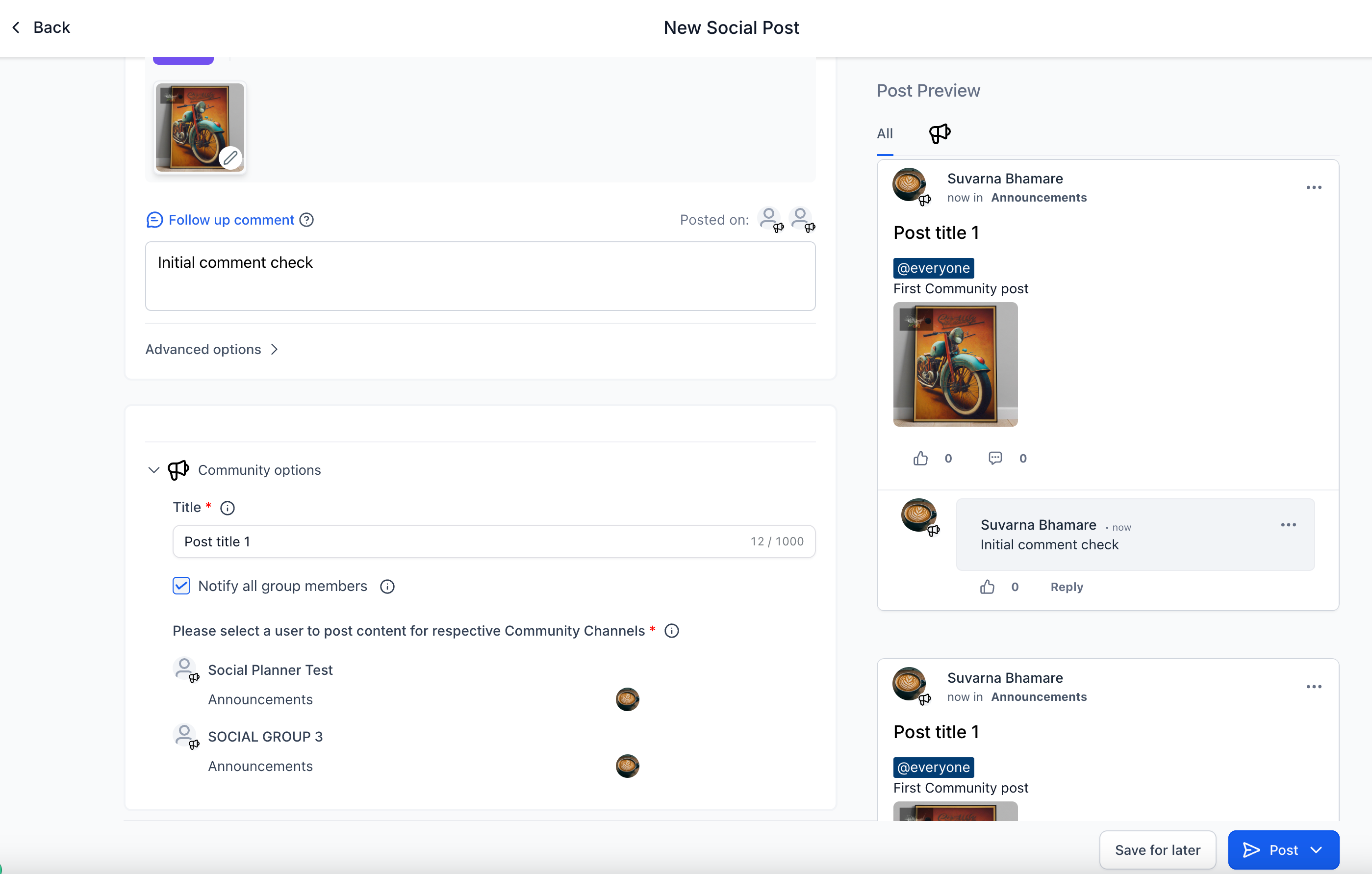
6️⃣ Fill in the mandatory fields such as Title and select the User you want to post as.
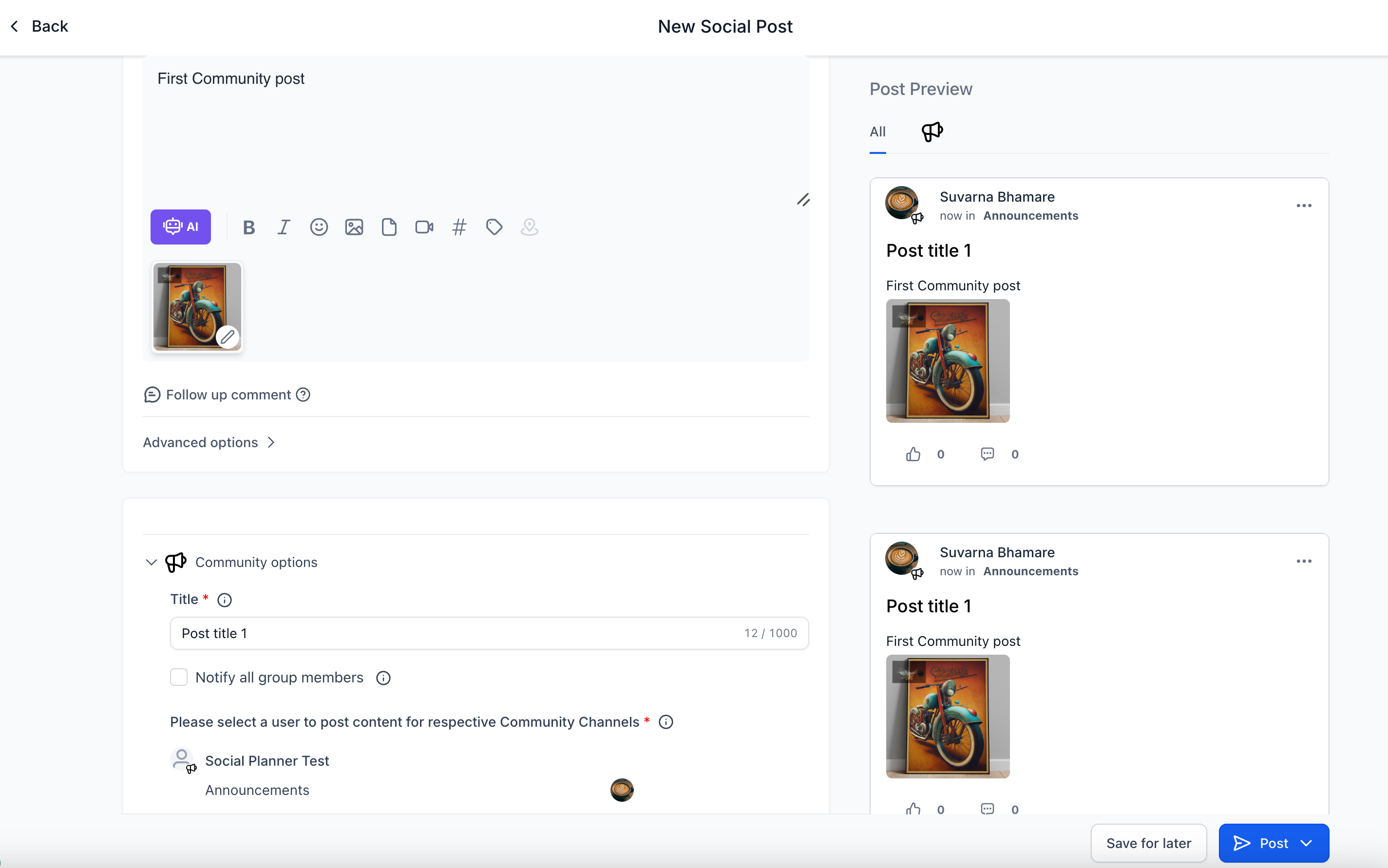
Schedule your first community post 🗓️
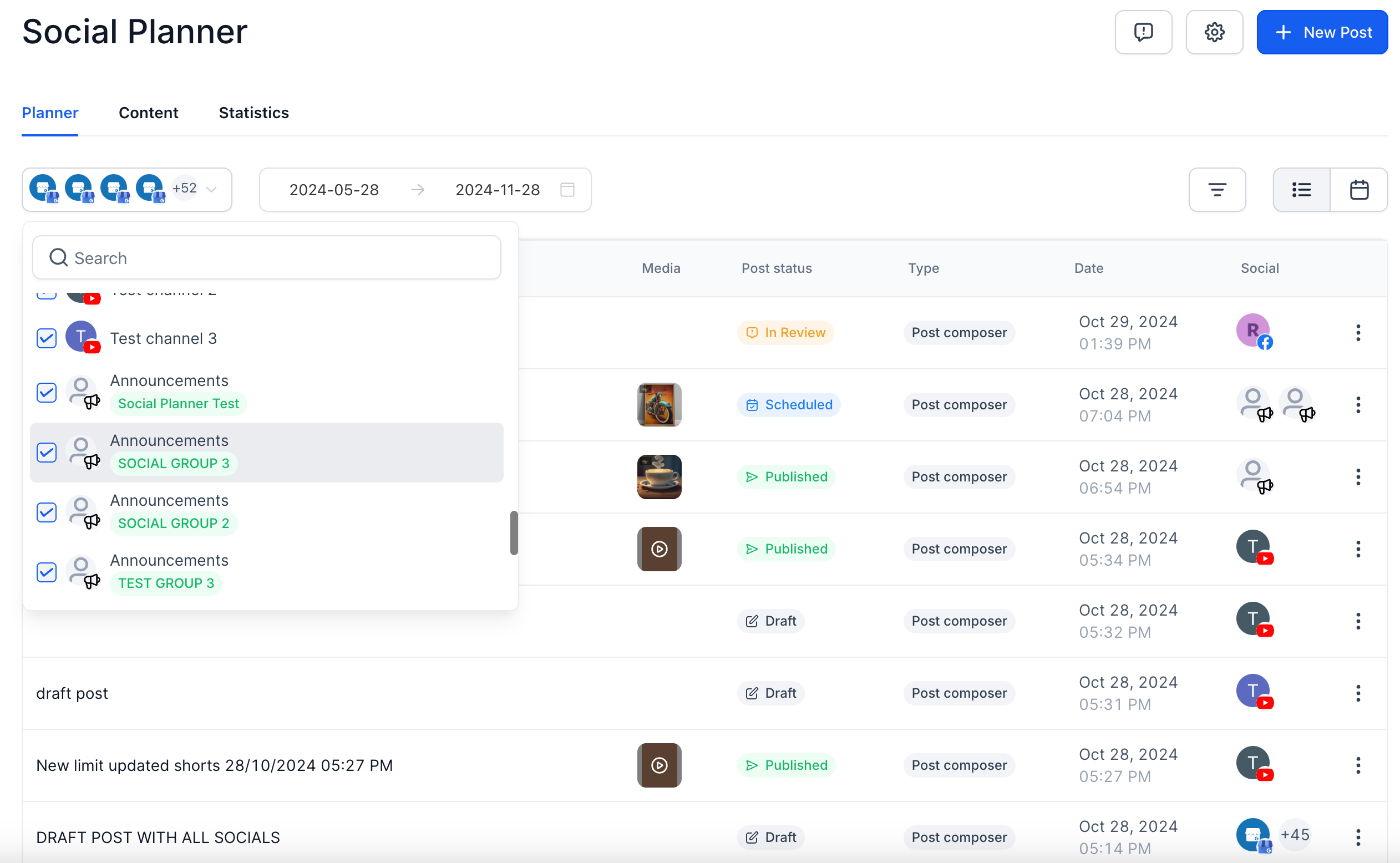
📌 Note: Community posting is allowed for CSV and other types of posts.
📌 Important Points to Note:
-
🔄 If there are new Channels or changes to Group/Channel details, they will not auto-populate in Social Planner. The user must go to Social Planner Settings > Communities to re-sync the groups and channels.
-
👤 In the Post Composer area, there's an option to add the username under which the post will be published. In SalesMFast Social Planner Settings > Communities, you can select default users who will be used when creating a new social post.