Form Submitted
📄 What is the “Form Submitted” Workflow Trigger?
This article provides a comprehensive overview of the "Form Submitted" workflow trigger — a powerful automation tool that activates when a form is submitted in your CRM.
You’ll learn:
- ✅ What this trigger does
- 💡 Key benefits
- 🛠️ How to configure it
- 🌍 Real-world use cases
- ❓ Common questions & best practices
⚙️ How It Works
The Form Submitted workflow trigger activates a sequence of automated actions whenever a specific form is submitted. This streamlines your processes, allowing your system to:
- Collect and log data
- Send follow-up emails or texts
- Notify team members
- Create tasks or opportunities
- Update contact records
It’s a vital tool for managing both external interactions (like lead follow-ups) and internal processes (like routing tasks).
🚀 Key Benefits of the Form Submitted Trigger
-
Improved Efficiency
- Automates repetitive tasks
- Reduces manual work and delays
-
Enhanced Communication
- Sends instant replies to customers
- Alerts internal team for fast follow-up
-
Data Accuracy
- Captures form data directly into the CRM
- Reduces errors and keeps records up to date
-
Customizable Workflows
- Use filters to target specific forms or conditions
- Tailor workflows to match your business logic
-
Scalability
- Supports multiple workflows
- Easily manage high volumes of form submissions
🛠️ Configuring the Form Submitted Workflow Trigger
Follow these steps to implement the "Form Submitted" trigger in your workflows:
1️⃣ Access Workflow Settings
- Navigate to the Workflow Automation section
- Create a new workflow from scratch or
- Select an existing workflow where you want to add the trigger
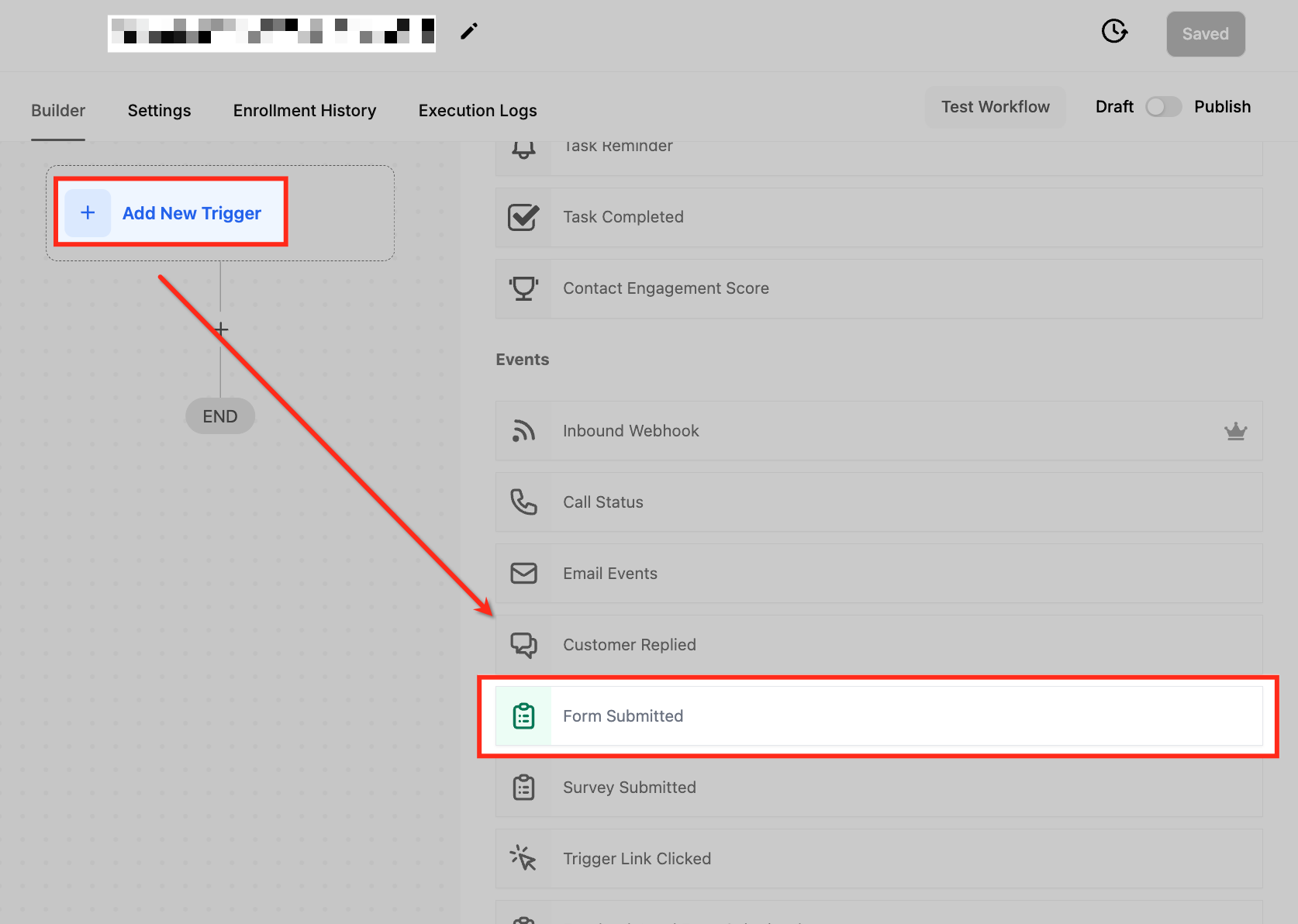
2️⃣ Add a New Trigger
- Click “Add New Trigger”
- Select “Form Submitted” from the dropdown menu
3️⃣ Name Your Trigger
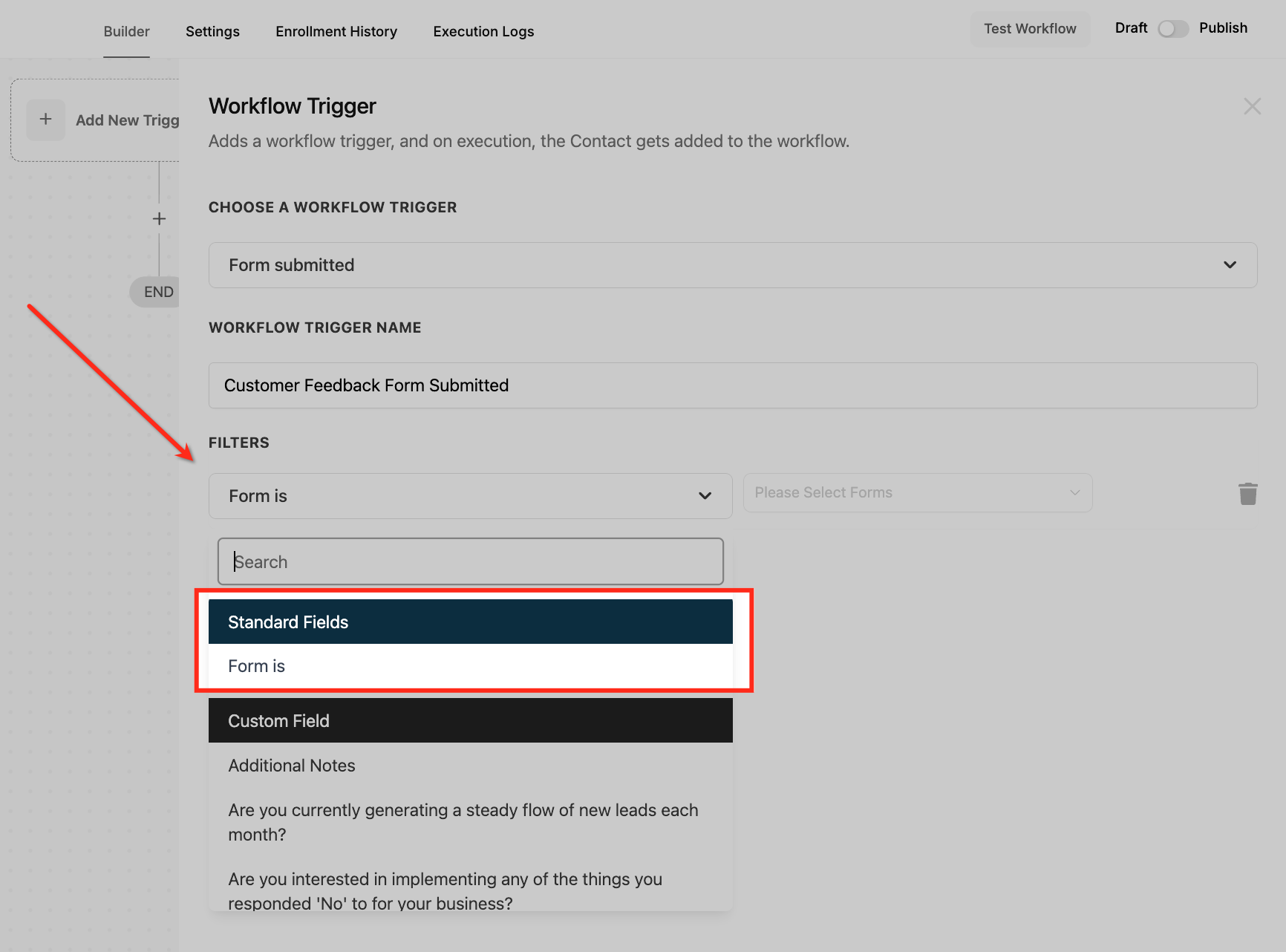
- Give it a clear and descriptive name
Example: “Customer Feedback Form Submitted”

4️⃣ Set Filters
Refine the activation criteria by configuring filters:
- Form Is:
Select the specific form that should trigger the workflow
Example: “Customer Feedback Form”
5️⃣ Save the Trigger
- Click the Save button to confirm your setup
6️⃣ Test and Publish
- Run the workflow with sample data to verify everything works as intended
- Once tested, toggle on Publish to activate the workflow
📚 Use Cases
📥 Customer Information Collection
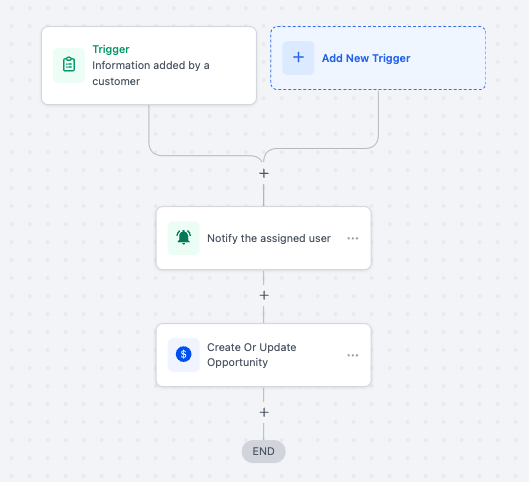
Scenario: A business wants to automate the process of collecting and managing customer information through an online form.
Trigger Setup:
- Trigger: Form Submitted
- Filter: Form is “Customer Information Form.”
Outcome: Submitted data is entered into the CRM, a notification is sent to the sales team, and a follow-up task is created.
✅ Lead Qualification Workflow
Scenario: A marketing team collects leads from a form submission and wants to qualify them automatically.
Trigger Setup:
- Trigger: Form Submitted
- Filter: Form is “Lead Capture Form.”
Outcome: The workflow assigns a lead score, updates the CRM with lead details, and notifies the sales team for further action.
🎫 Event Registration Management
Scenario: An event organizer uses a form to register attendees and needs to automate the communication process.
Trigger Setup:
- Trigger: Form Submitted
- Filter: Form is “Event Registration Form.”
Outcome: An email confirmation is sent to the registrant, and their details are added to the attendee list in the CRM.
💬 Customer Feedback Collection
Scenario: A business collects customer feedback using an online form and wants to analyze the responses.
Trigger Setup:
- Trigger: Form Submitted
- Filter: Form is “Customer Feedback Form.”
Outcome: The workflow sends a thank-you email to the customer and adds their responses to a feedback database for analysis.
🏥 Appointment Booking Notifications
Scenario: A healthcare provider collects appointment bookings through a form and wants to notify the relevant team.
Trigger Setup:
- Trigger: Form Submitted
- Filter: Form is “Appointment Booking Form.”
Outcome: The workflow notifies the scheduling team, updates the appointment calendar, and sends a confirmation email to the patient.
❓ Frequently Asked Questions
Q. Can this trigger handle multiple forms in a single workflow? Yes, you can configure the workflow to activate for multiple forms by adding more filters or setting broader criteria.
Q. What happens if the form is submitted multiple times by the same user? The trigger activates each time the form is submitted. Use conditions or cooldown periods in workflows to manage duplicate submissions effectively.
Q. Can I send different responses based on the form submitted? Yes, you can customize workflow actions for each form by using filters to differentiate responses.
Q. How do I handle form submissions with incomplete data? You can add conditions within the workflow to validate required fields and take specific actions, such as sending an alert or skipping incomplete submissions.
Q. Is this trigger compatible with external form tools? The Form Submitted trigger works with forms created within your CRM. For external tools, you may need to use an integration or webhook to capture submissions.