Email Notification
📧 Email Notifications are available for the following in Social Planner -
🔁 Account Expired – Social Accounts whose tokens have expired
⏳ Account PreExpiry – Social Accounts like Facebook pages have expiry of 60 days; before 60 (around 50th day), user will get notified to refresh the token
📝 Request for Approval – Social Post which is scheduled for approval, requesting the user to approve the scheduled post
✅ Post Approved update to Creator – Notifying the creator of the post if the scheduled post was approved
❌ Post Rejected update to Creator – Notifying the creator of the post if the scheduled post was rejected
⚠️ Post Failed – Notifying the users selected about the scheduled post failure
⚙️ How do the notification for Social Planner work?
1️⃣ Go to Marketing > Social Planner
2️⃣ In Social Planner, click the gear icon (⚙️) beside the New Post button
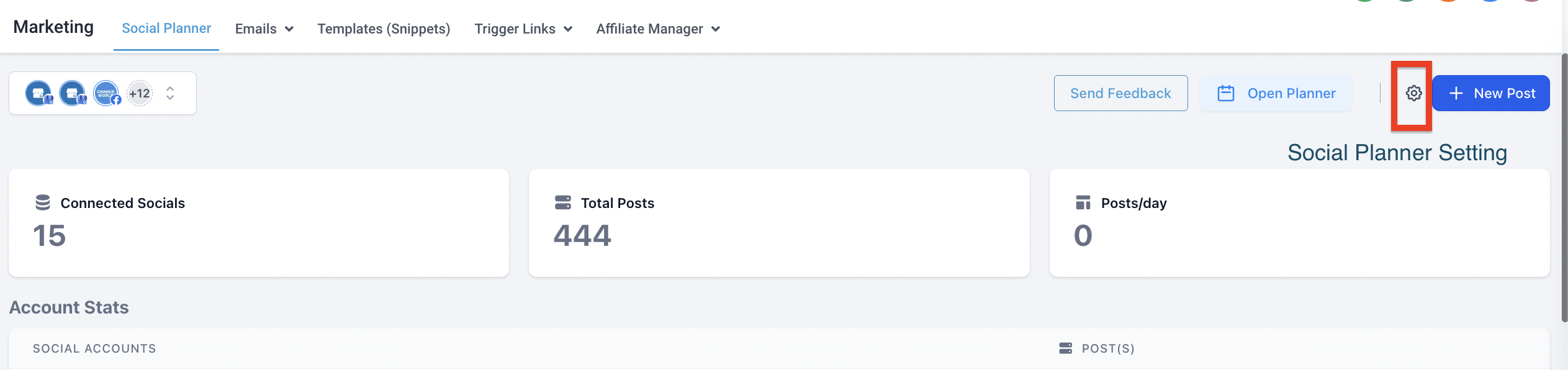
3️⃣ In Social Planner Settings, go to the Notification tab
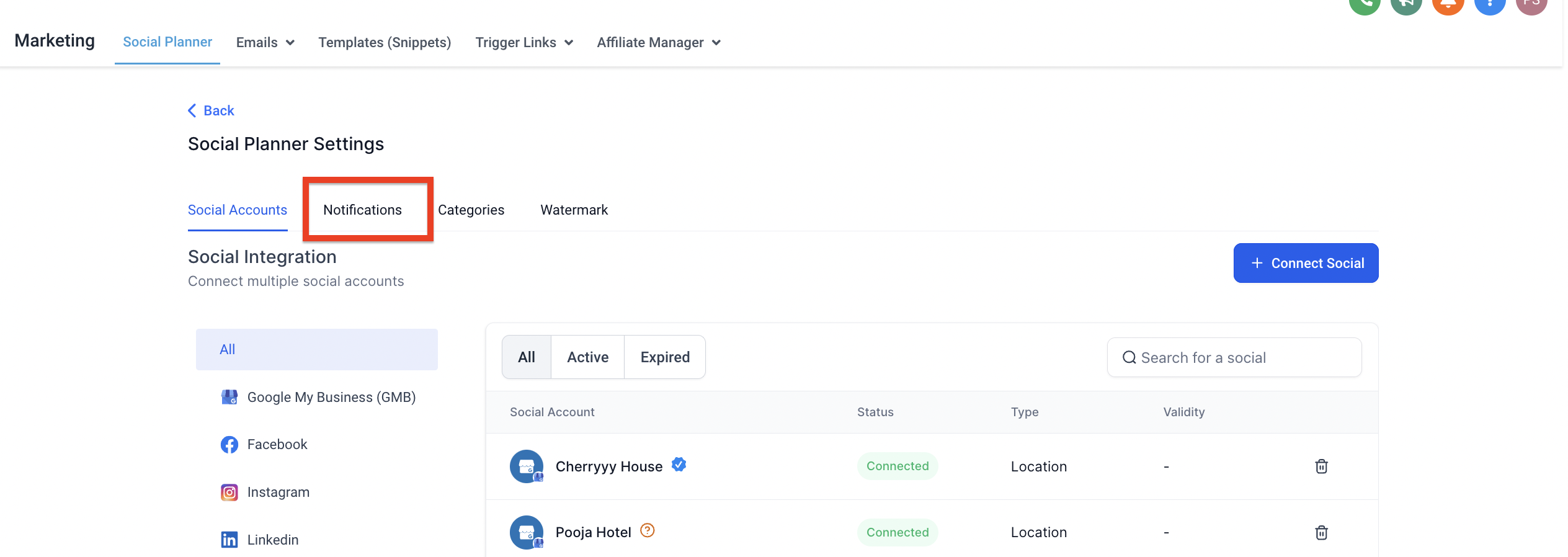
📬 How does each Notification for Social Planner work?
-
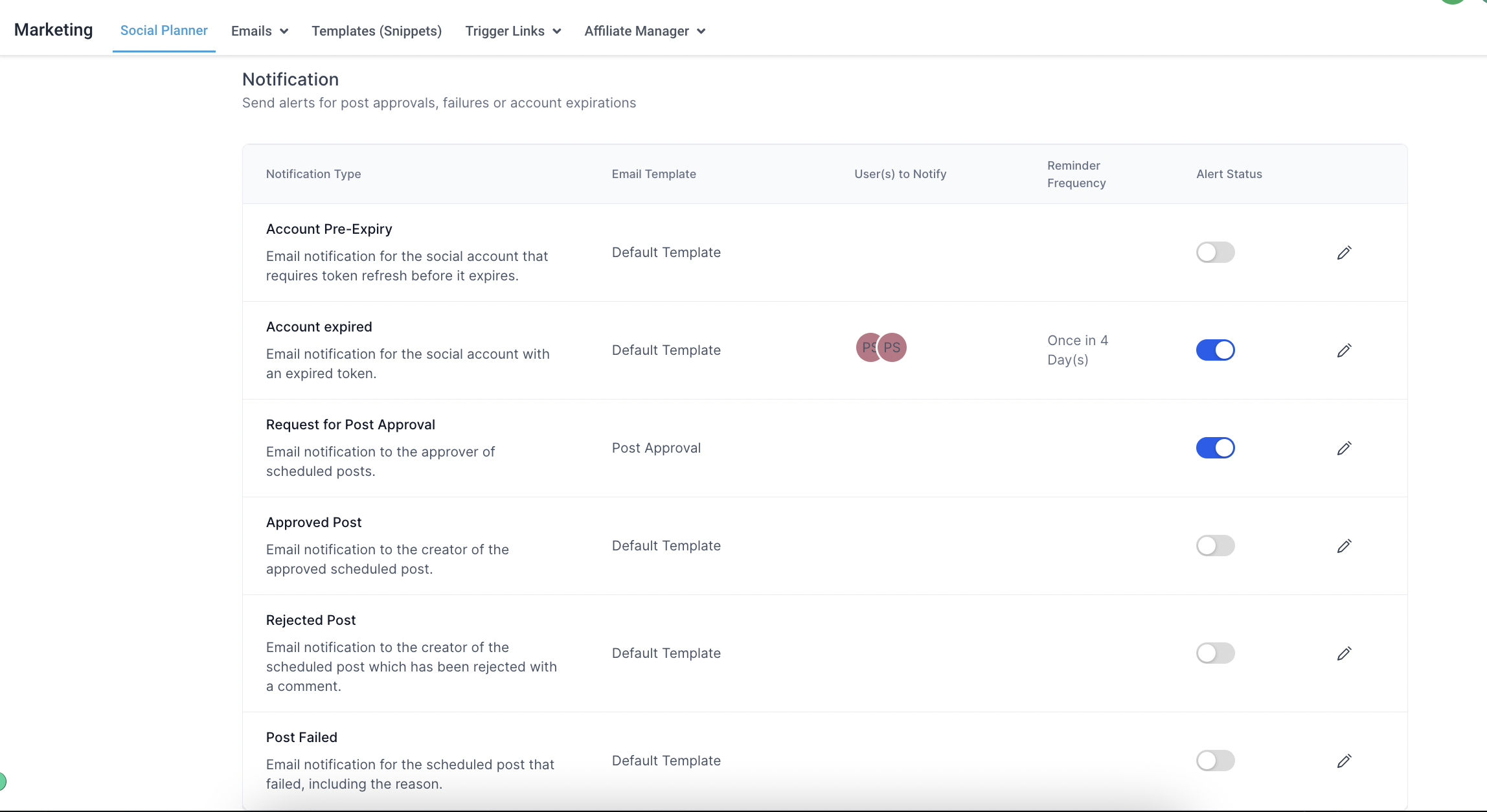
Notification settings for account pre-expiry
✏️ Edit by clicking the pencil icon
👤 Select the sub-account users
🔄 Set how often the user should be reminded to refresh the account
📝 Choose different templates other than default


-
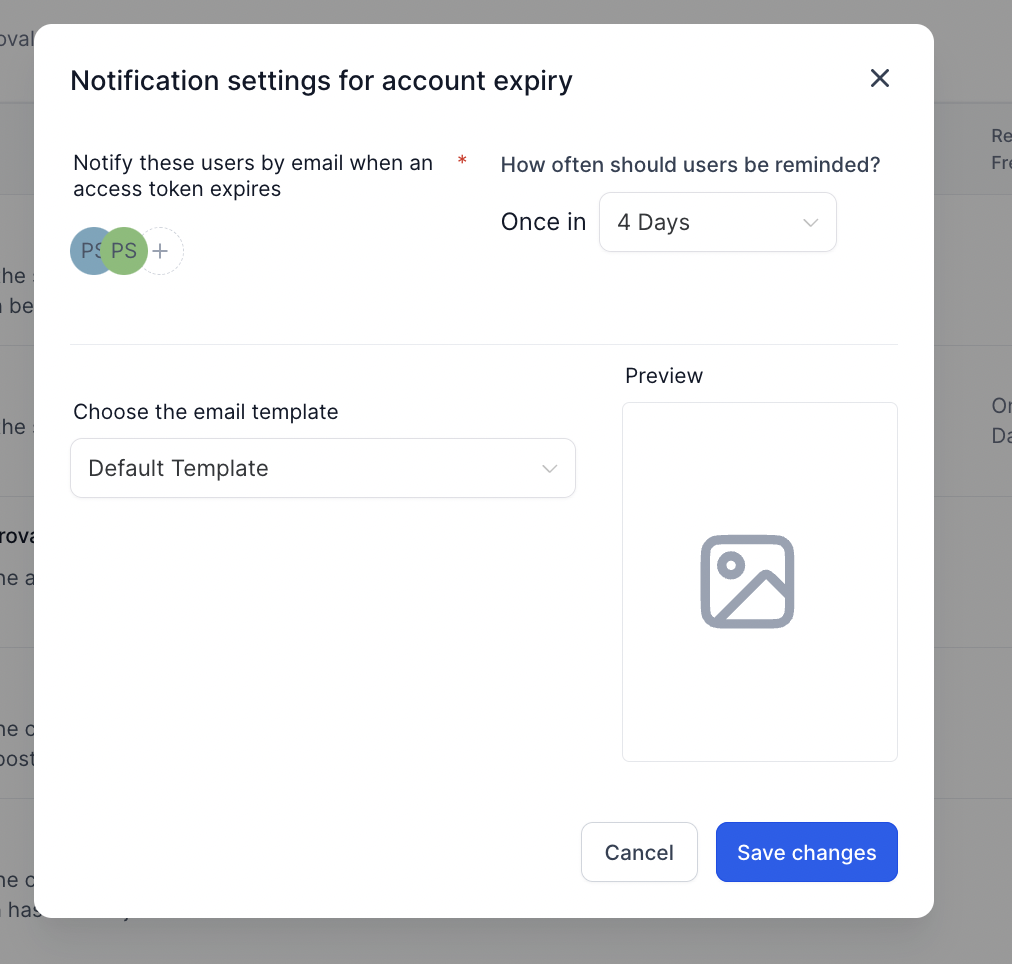
Notification Settings for Account Expired ✏️ Edit by clicking the pencil icon
👤 Select the sub-account users
🔄 Set reminder frequency for token reconnect
📝 Choose different templates

-
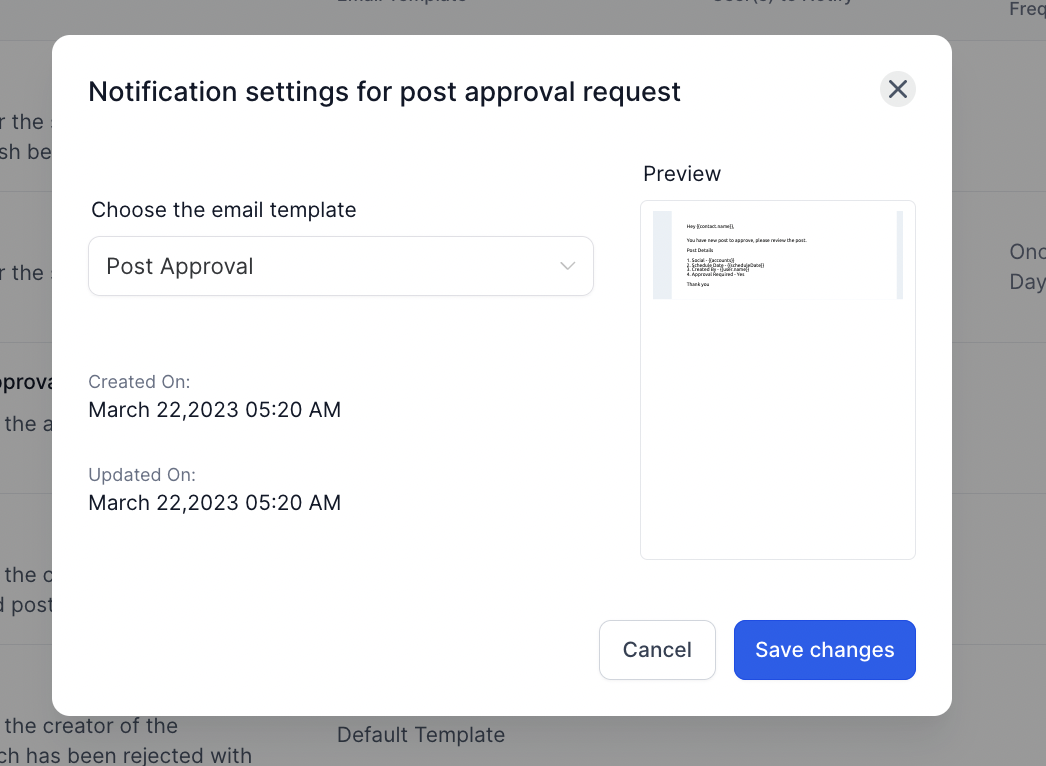
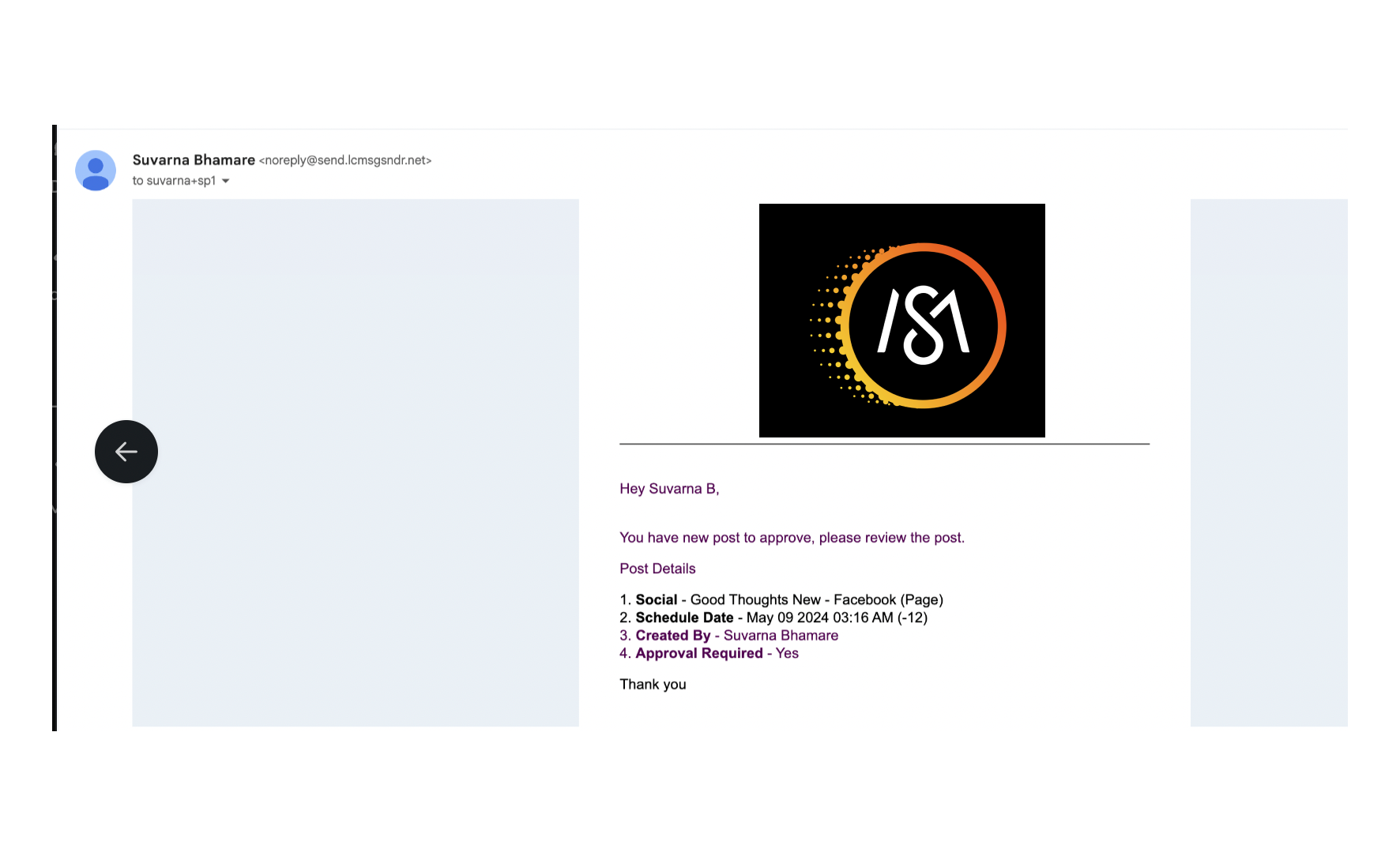
Notification for Request for Approval ✏️ Edit email notification for scheduled post approval
📝 Choose different templates
-
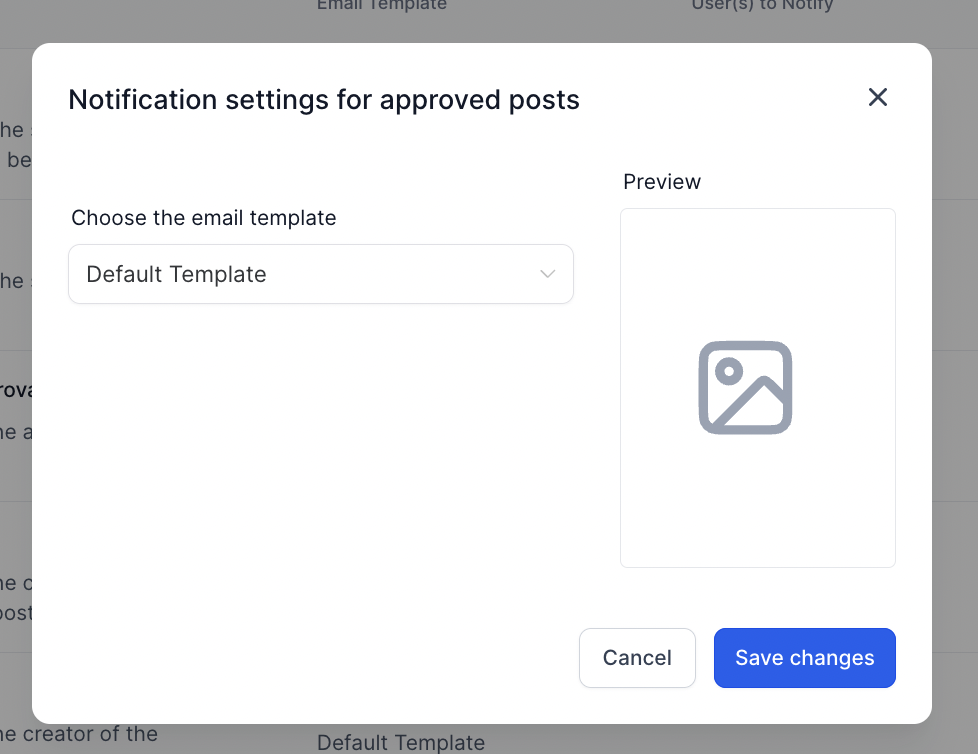
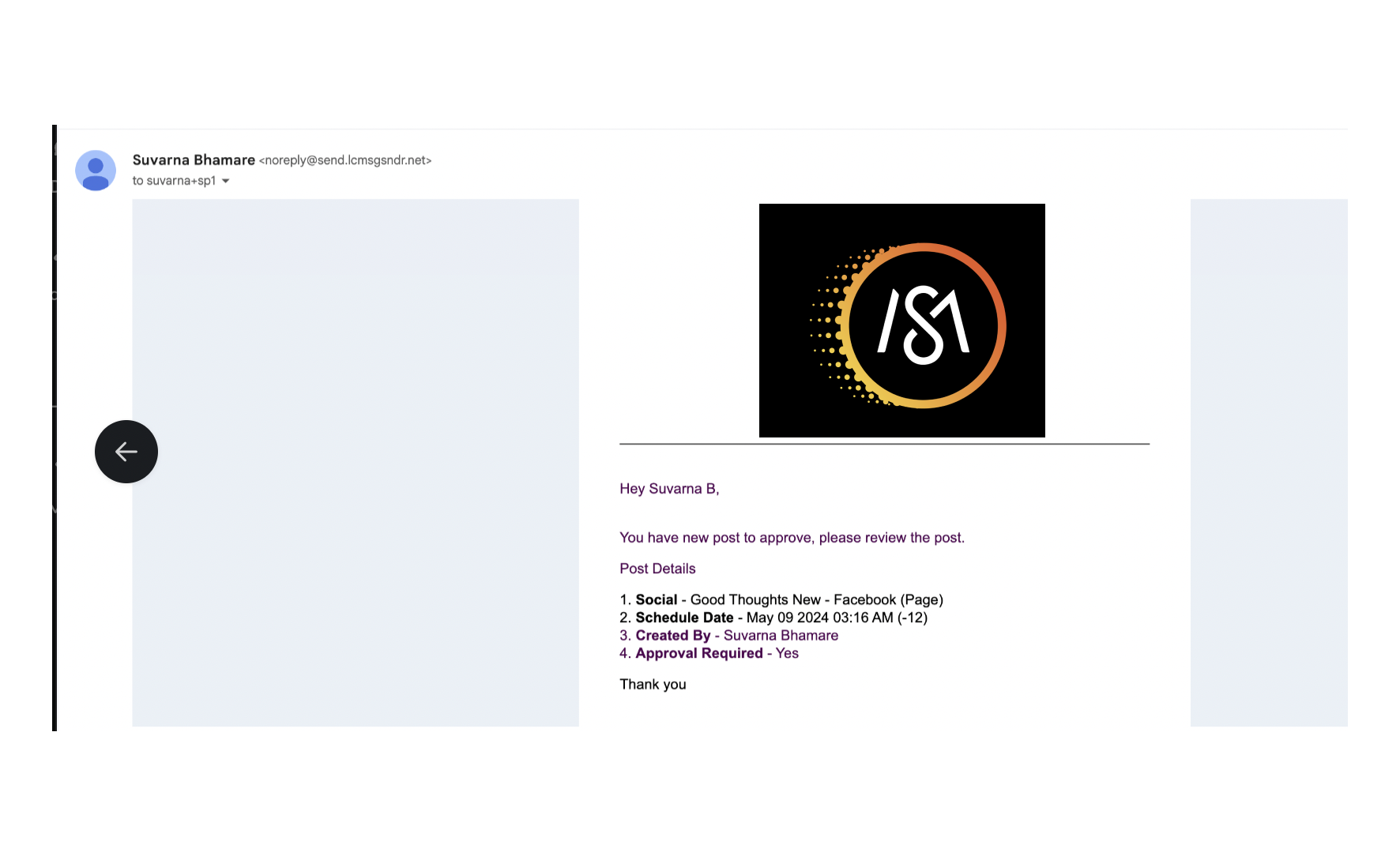
Notification for Approved Post ✏️ Edit email notification to creator of the approved post
📝 Choose different templates
-
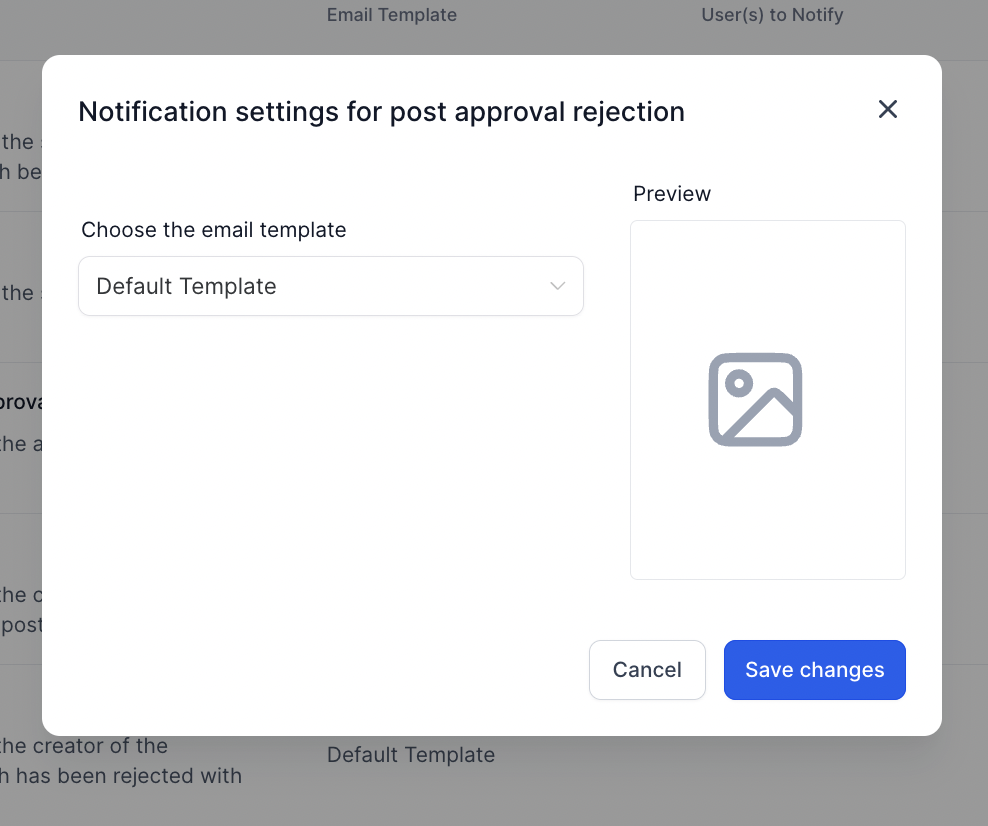
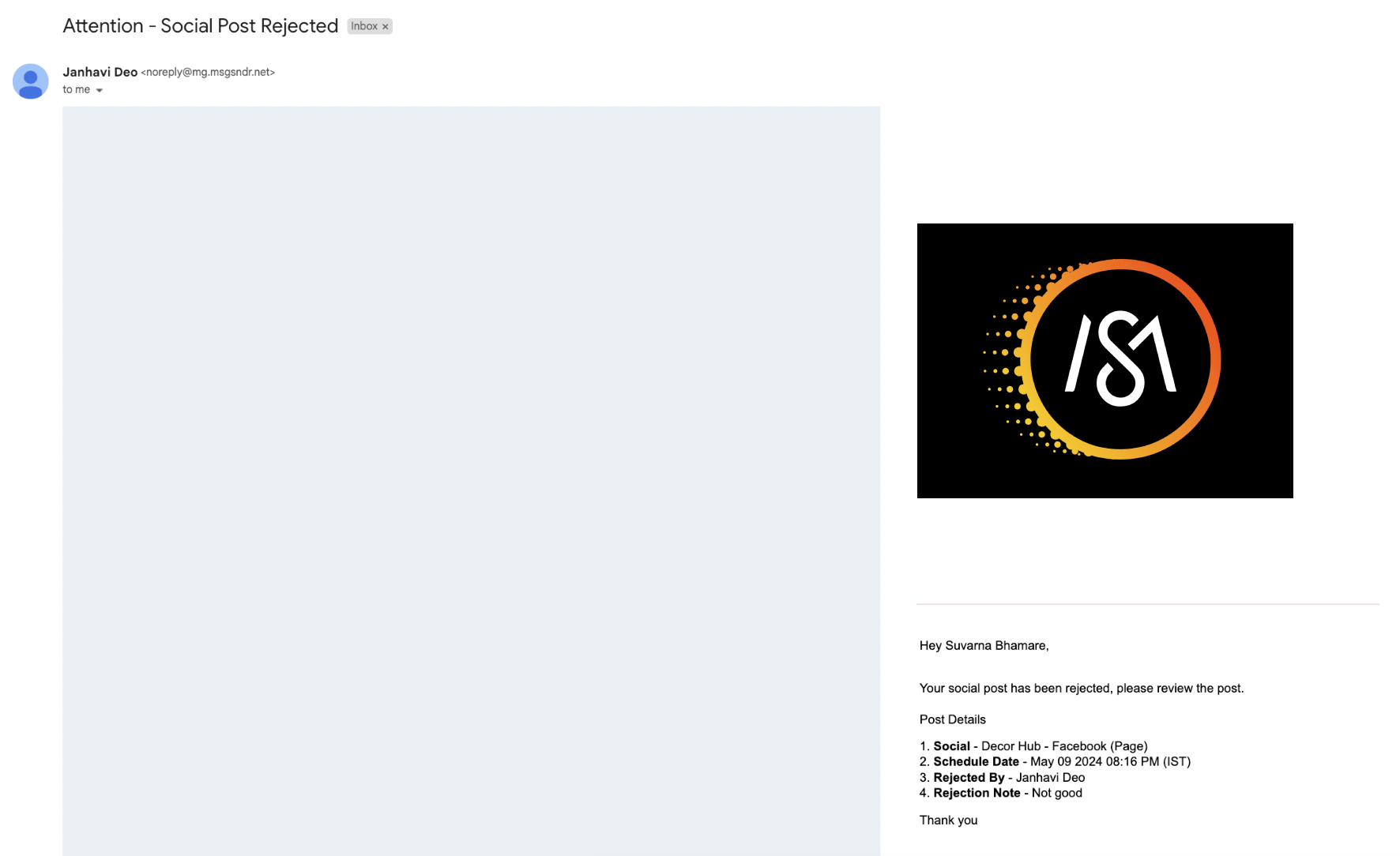
Notification for Rejected Post ✏️ Edit email notification to creator of the rejected post
📝 Choose different templates
-
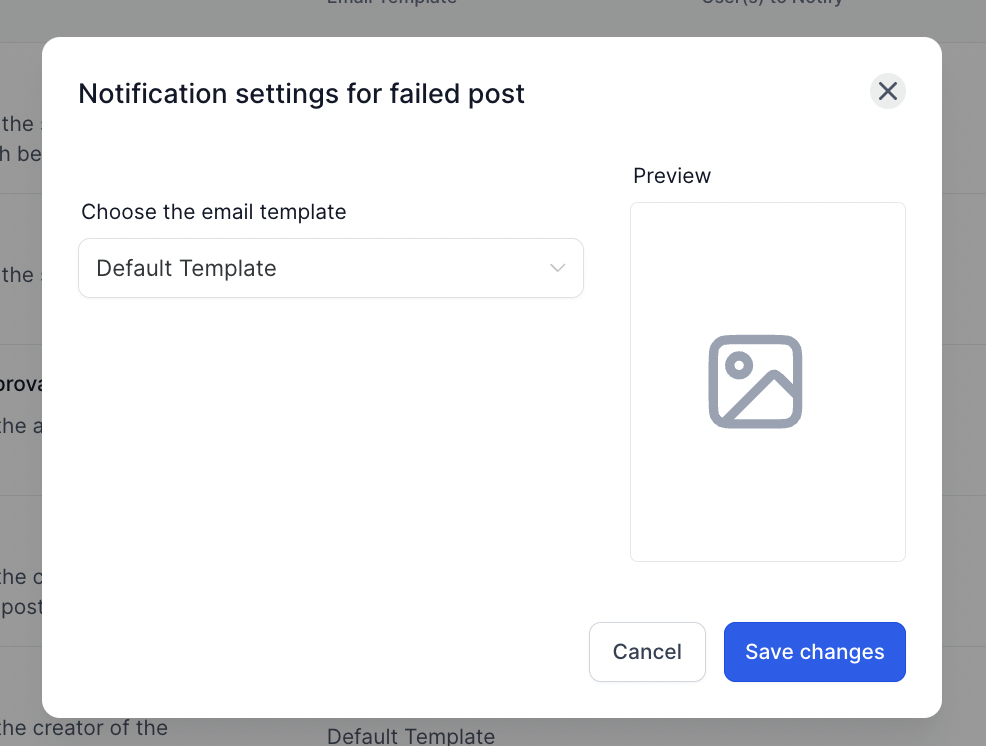
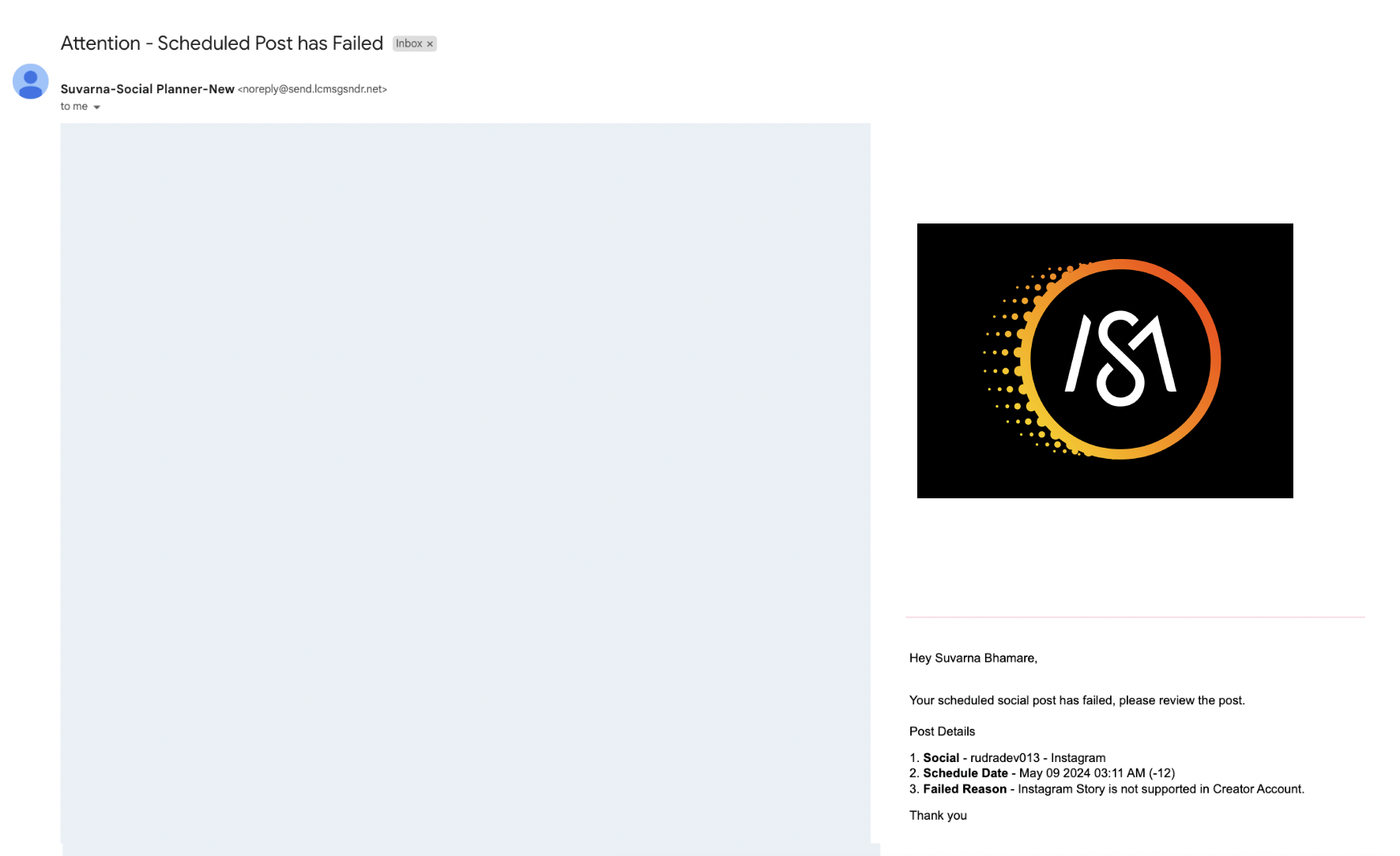
Notification for Failed Post ✏️ Edit email notification for the failed post
📝 Choose different templates
❓ FAQ
1️⃣ How to change the default email template for notification?
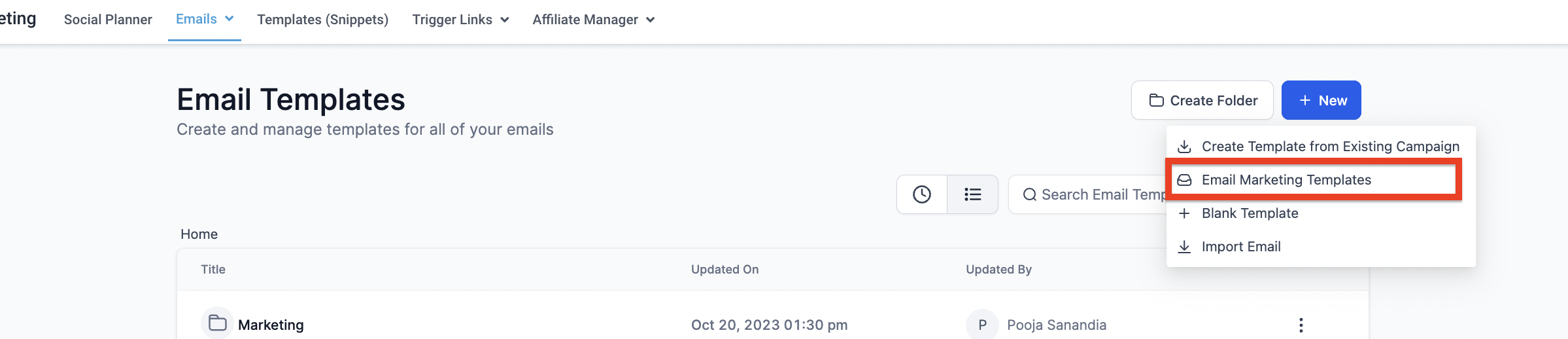
🛠️ Go to Emails > Template
➕ Click New and select Email Marketing Template
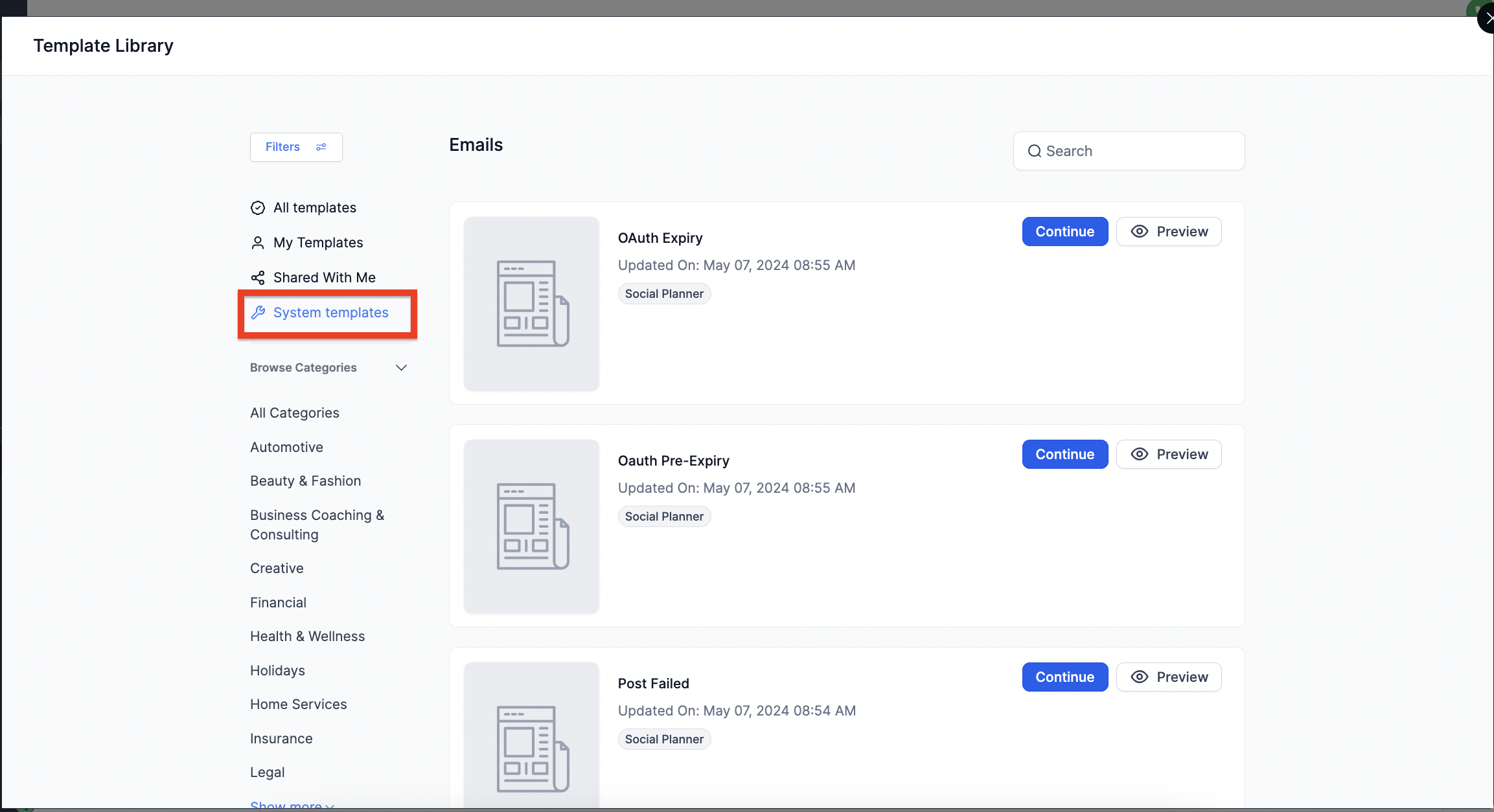
📚 When the template library opens, on the left, choose System Template, select the template, and edit content
🔄 Go to Social Planner Notification and change the template
2️⃣ How does Pre-expiry notification work?
🔔 Pre-expiry email will trigger (if enabled) when the token (e.g., Facebook Page) is set to expire in 90 days
📅 The notification will trigger on the 80th day