Conversations Overview
💬 SalesMFast Conversations Overview
In this tutorial, we’ll provide a review of the Conversations section of your menu within SalesMFast. Read on to learn how to navigate through this section.
📨 Step 1: Accessing Your Messages in SalesMFast
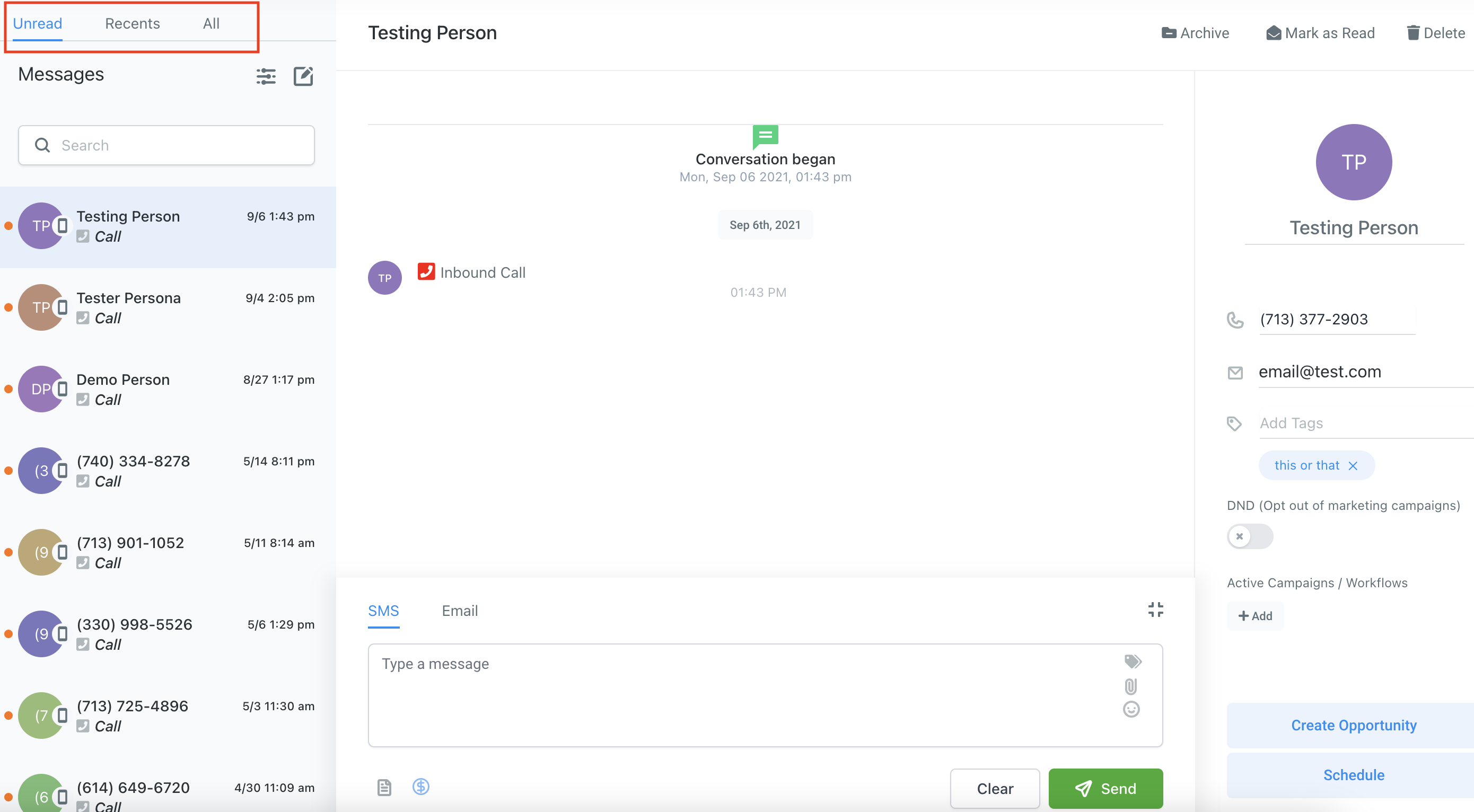
- Click into your Conversations inbox
- In the first column on the left, you’ll see a list of your messages
-
You can navigate between:
-
Unread – messages that have not yet been read
- Recent – messages received within the last several days
- All – your entire message history
- Use the search box at the top to find a specific message
📜 Step 2: Viewing Conversation History
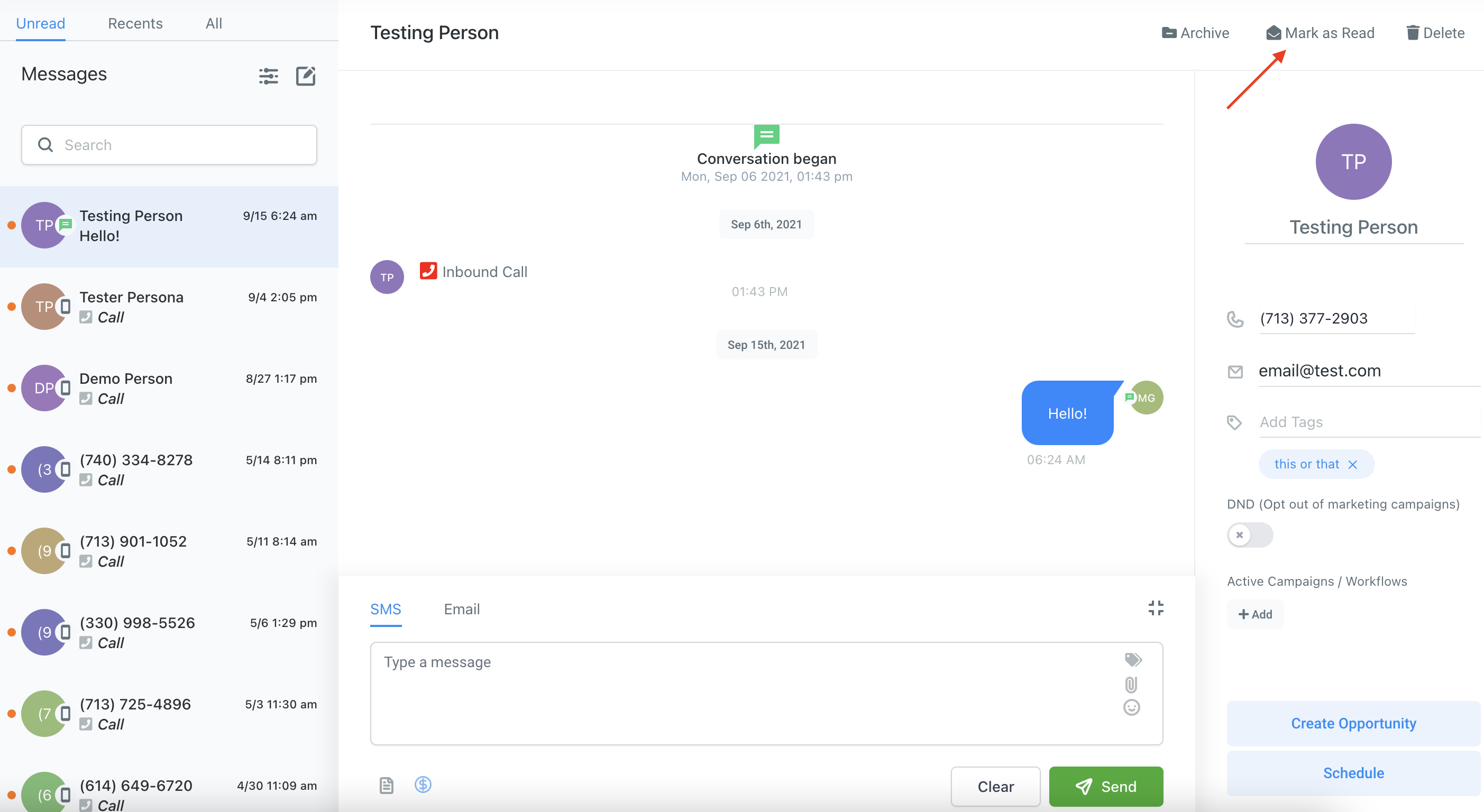
- Click into a message to view the conversation history in the center
- Scroll up to fetch older messages, depending on how long the conversation thread is
✅ Step 3: Marking Unread Conversations as Read
You have a few options:
- Respond using SMS or Email in the composer at the bottom of the center panel
- Click the "Mark as Read" button in the top right of the conversation view
👤 Step 4: Viewing Contact Information
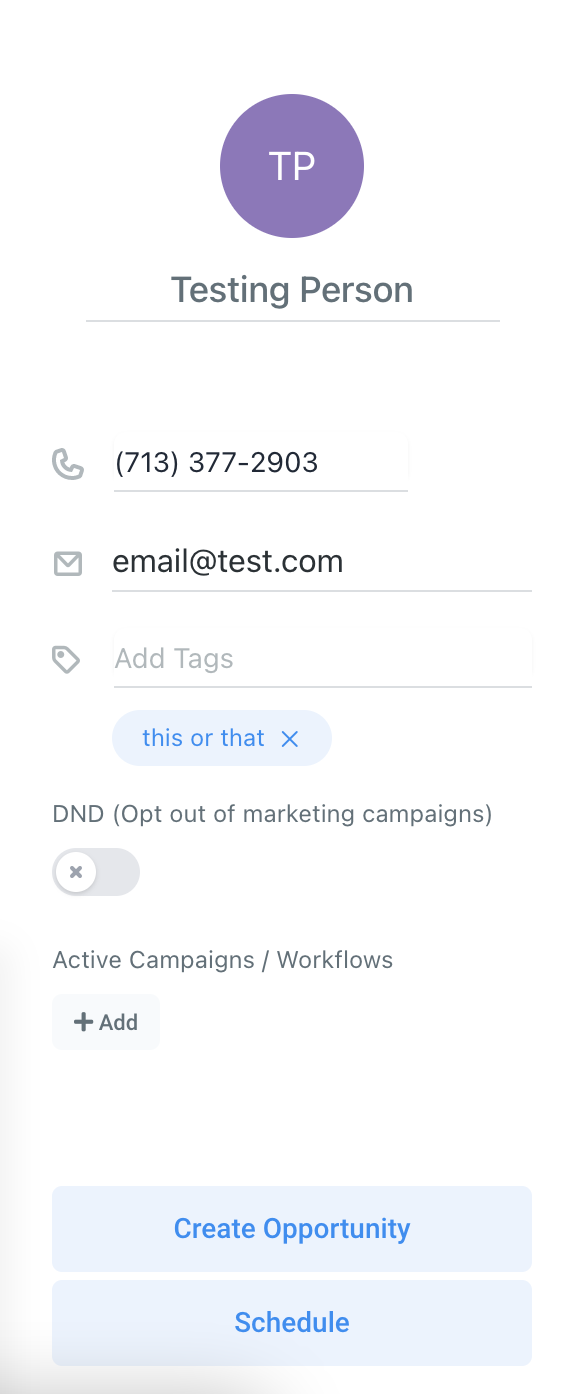
On the third panel (right-hand side), you’ll see contact details:
- Call the user by clicking the phone button
- View their email address
- Add tags
- Toggle DND (Do Not Disturb) on or off
- Add them to a campaign under “Active Campaigns”
- Click Create Opportunity, fill in the details, and click Add
- Click Schedule to book an appointment
- Delete or archive the conversation using the buttons in this panel
⚠️ NOTE:
If you click the icon in the top right, this will close the message without saving. It will not expand the screen.
This has been an overview of what you can do in the Conversations section in SalesMFast. This area is used for direct communication with individual contacts, especially when automation is not sufficient or appropriate.