Automatic Email and SMS Followup
🔄 Create Automated Form Submission Email Follow-Up
Set up automated email and SMS drip campaigns to nurture 100+ leads over time. Boost your conversion rates by ensuring consistent follow-up without spending your precious time doing it manually.
Automated email follow-ups can transform your lead nurturing strategy. Think of this as your virtual assistant, handling responses seamlessly so you can focus on growing your business.
Let's dive right in:
-
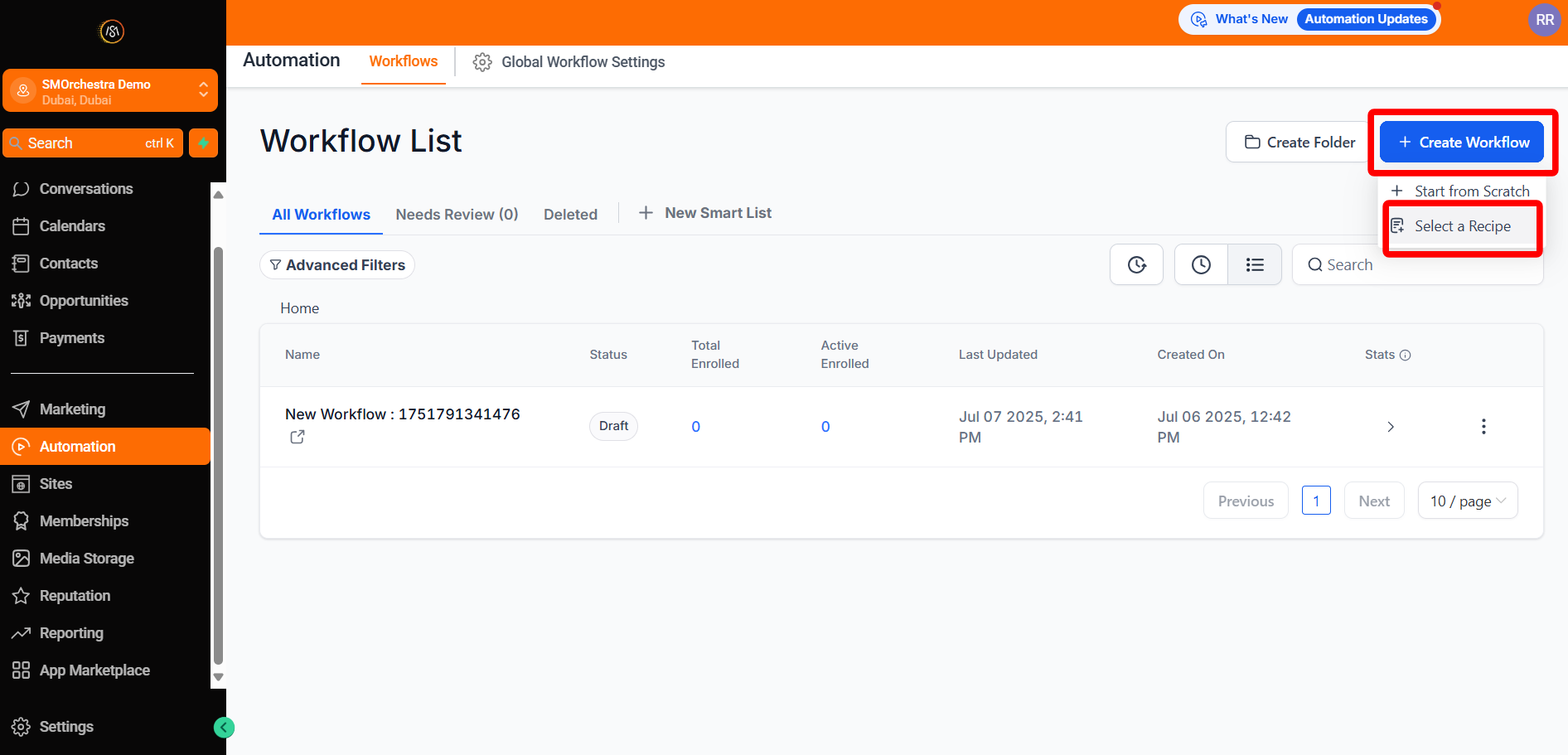
Navigate to Automation
-
Click Create Workflow > Select a Recipe
-
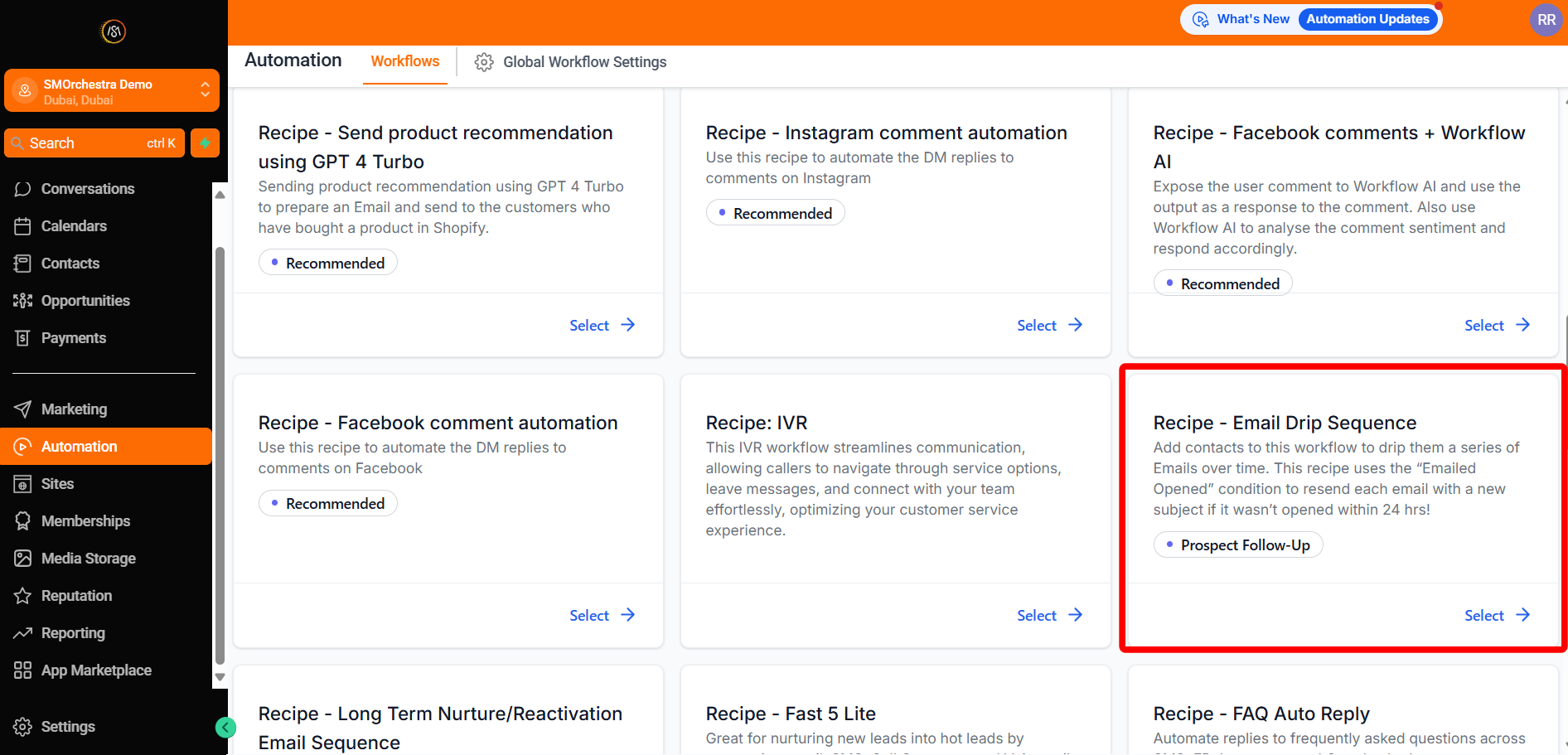
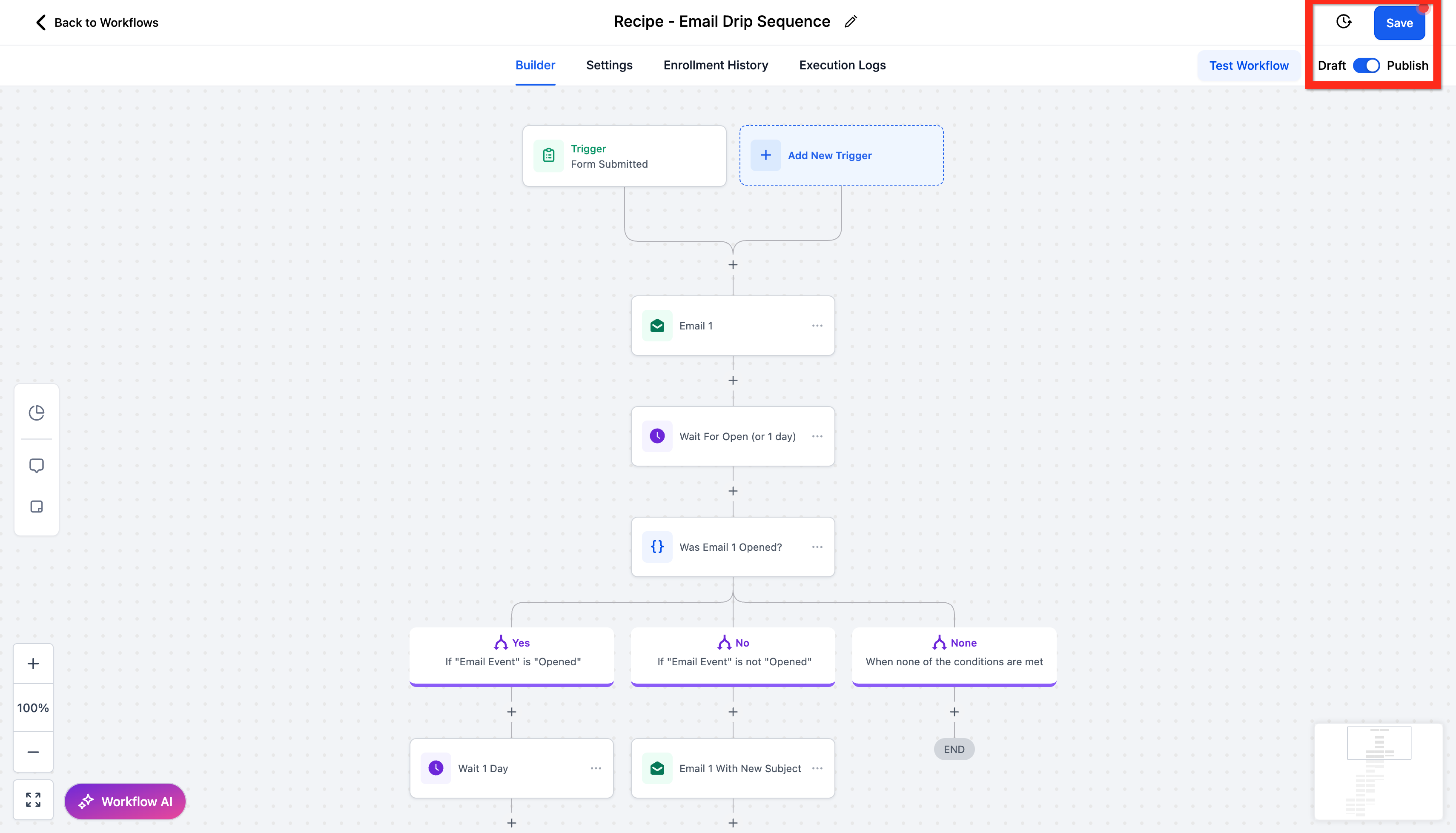
Select the recipe Email Drip Sequence
-
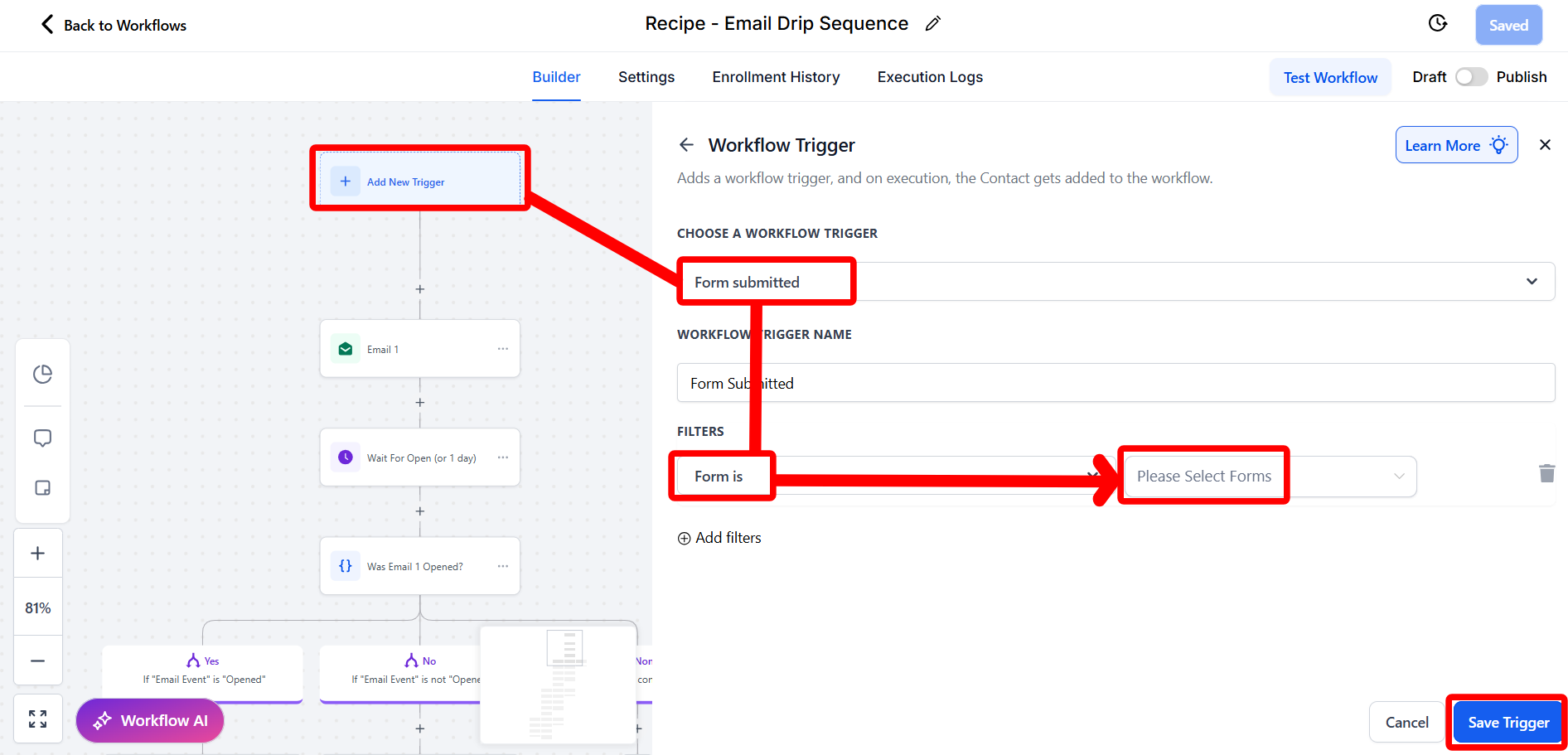
Add the trigger Form Submitted
-
Click Add filter
- Choose Form is
- Select the relevant form
-
Click Save
-
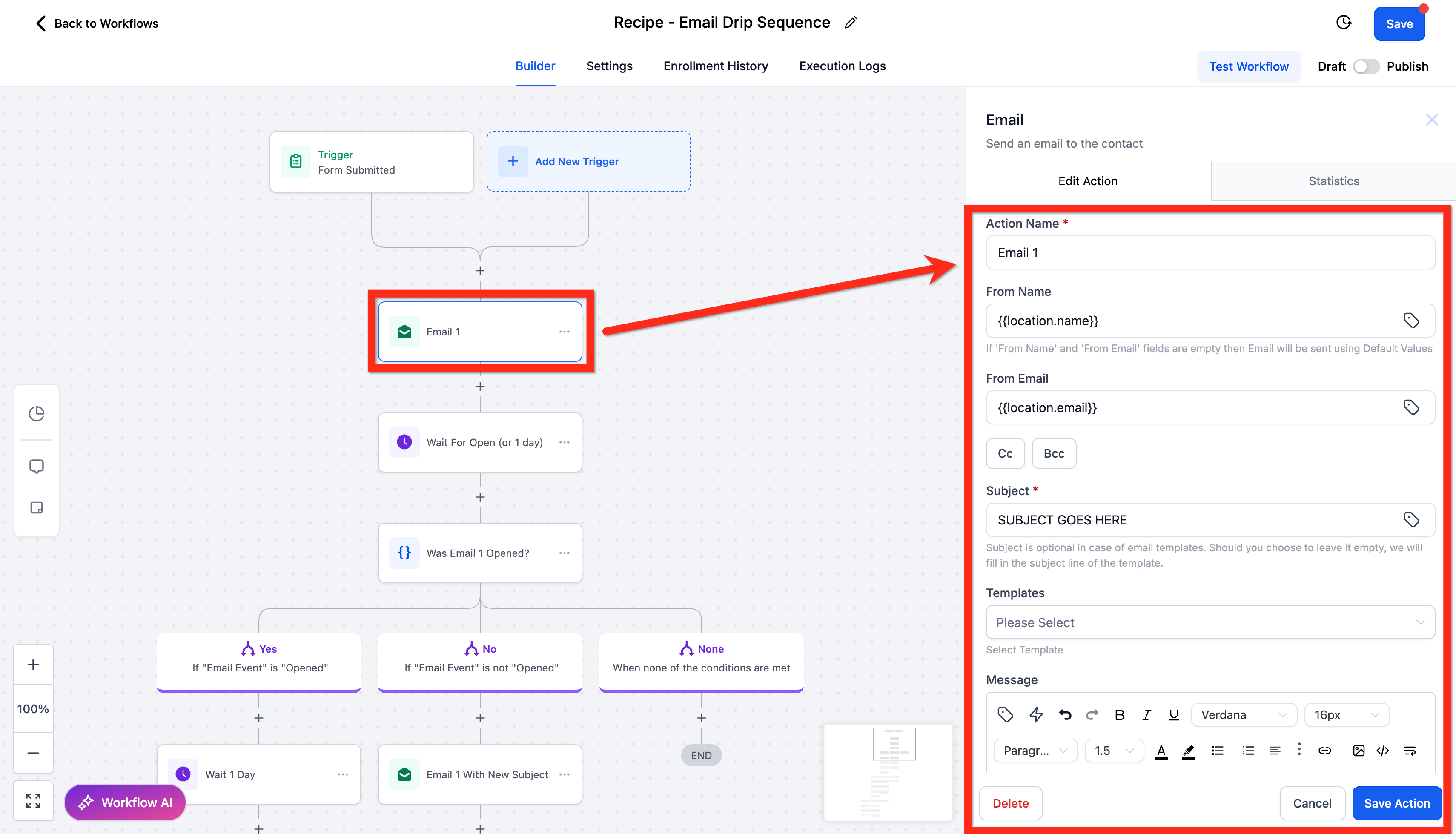
Edit the email actions by customizing:
- Subject
- Message content
- Attachments
- Other details
Then click Save Action
-
Click Publish
-
Click Save
📲 Create Automated Form Submission SMS Follow-Up
Sending SMS follow-ups alongside your emails can greatly enhance your communication effectiveness. With texts typically opened within minutes, this approach ensures you're always top-of-mind.
Here’s how you do it:
-
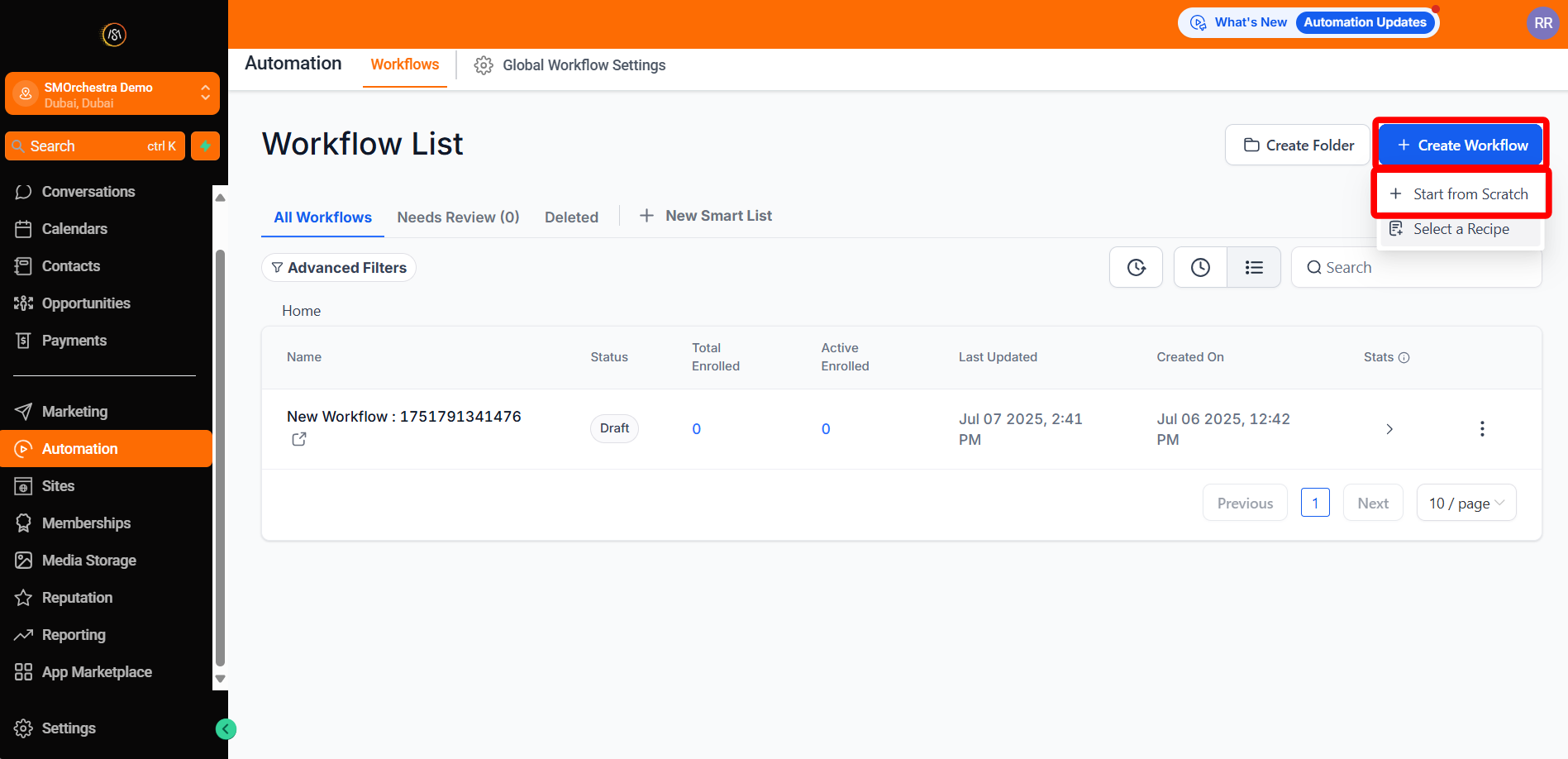
Navigate to Automation
-
Click Create Workflow > Select Start from scratch
-
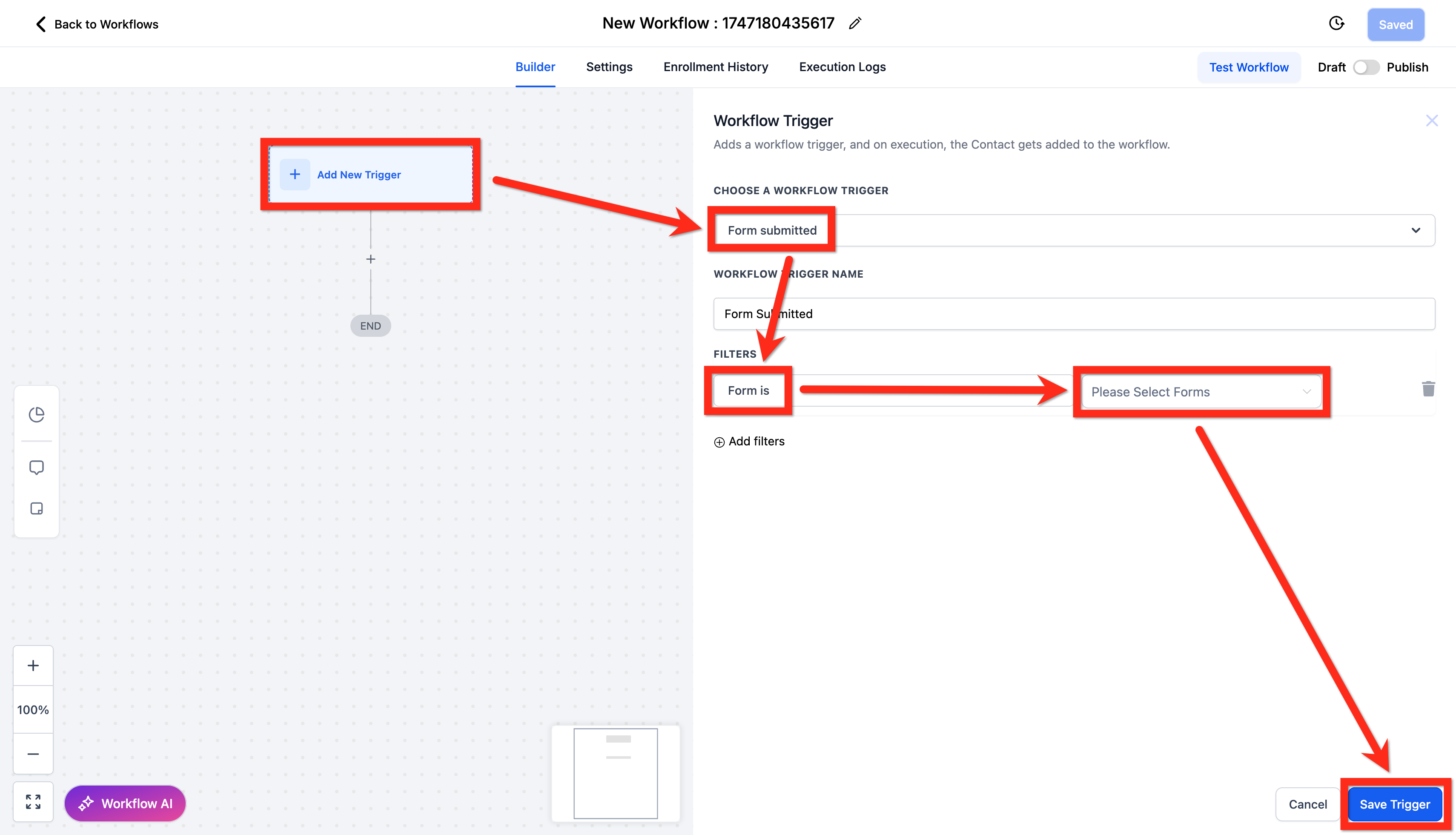
Add the trigger Form Submitted
- Click Add filter
- Choose Form is
- Select the desired form
- Click Save
-
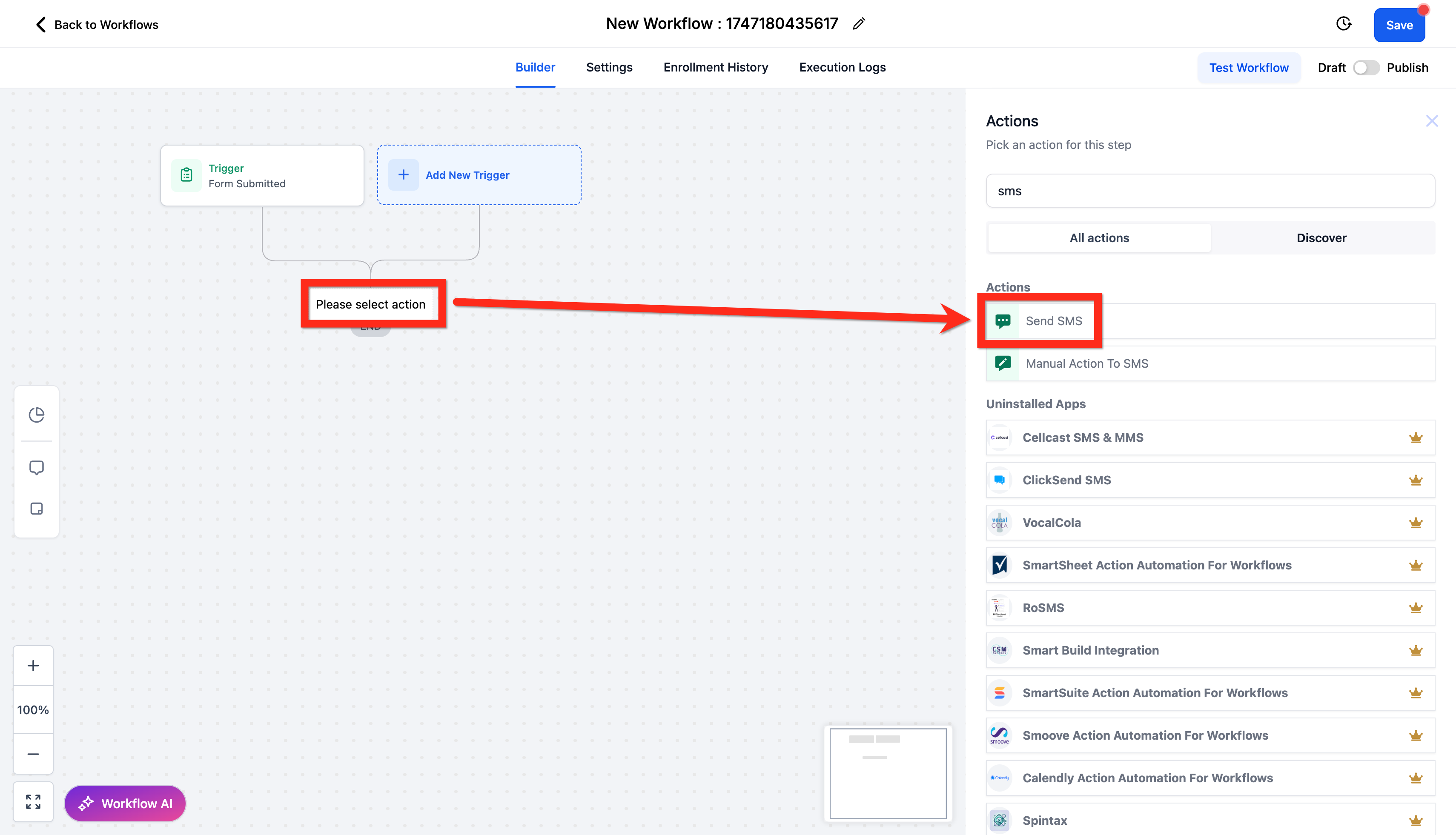
Add the Send SMS action
-
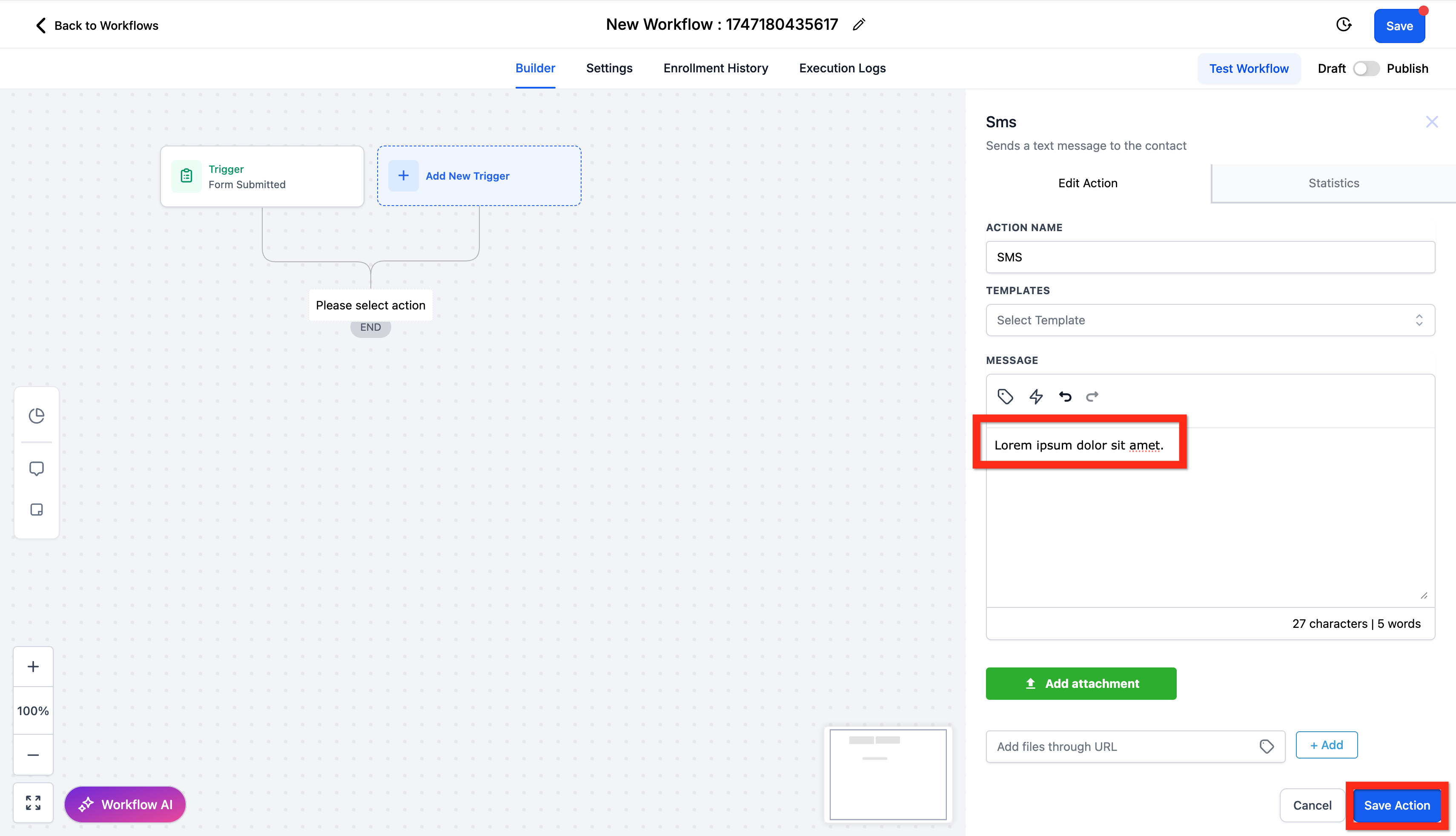
Write your engaging message clearly and succinctly, then click Save Action
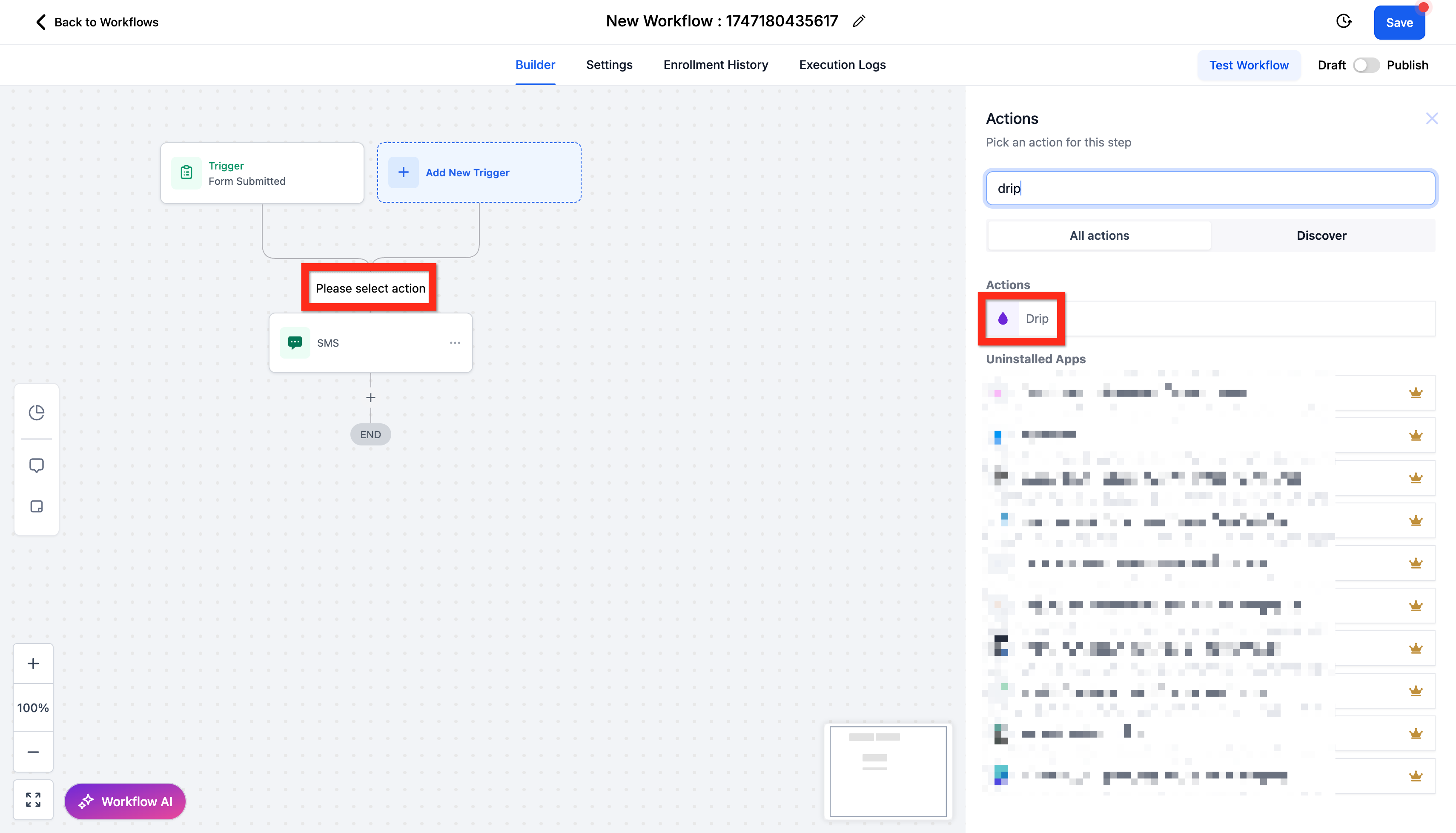
- Add the Drip action BEFORE your Send SMS action
-
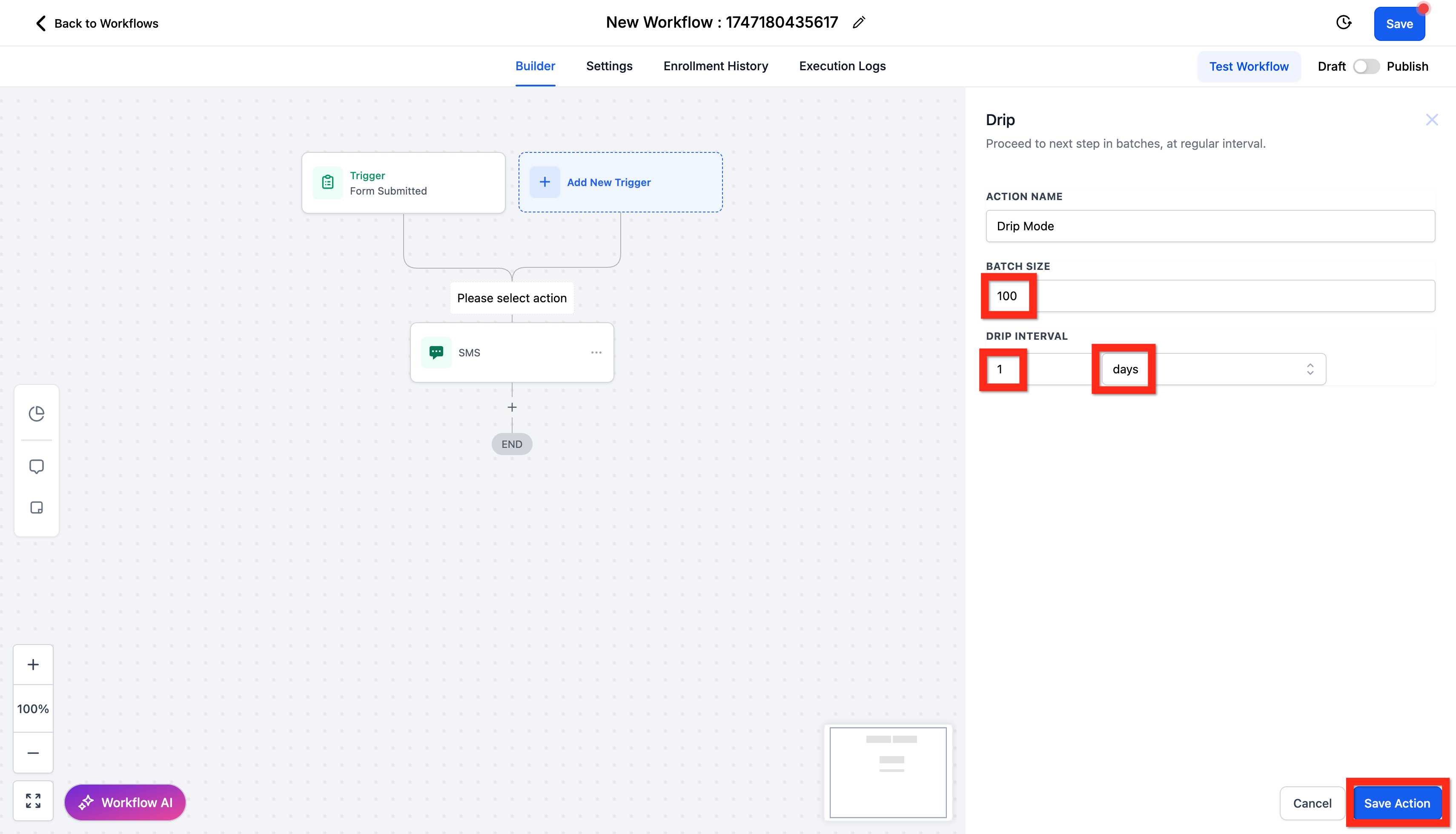
Set your batch size to 100 Choose the drip interval as every 1 day Click Save Action
-
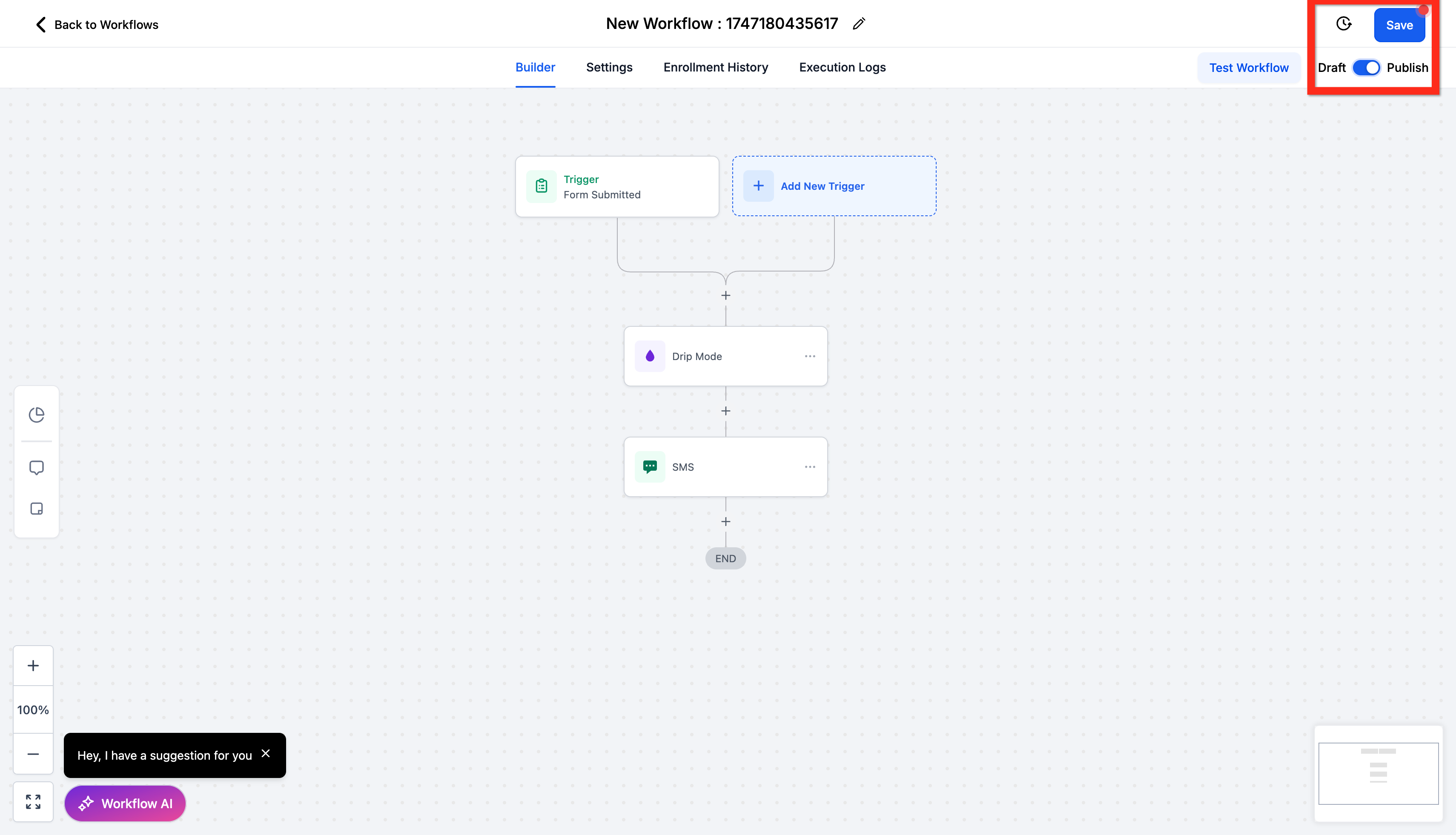
Click Publish
-
Click Save
🎉 Great job! Next, you might consider checking out additional workflow actions to further streamline your processes.